
Dynalink DL-WRX36 WiFi 6 AX3600 Router User Guide








DynalinkXDL-WRX36 | FAQ & Troubleshooting
How to set up OpenVPN Server on the Dynalink Router?
1. Login with the username and password you set up for your router account via WebGUI. By default,
your user name is admin and password prints on the label on the bottom of Dynalink Router.
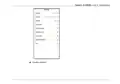
2. Go to Security > VPN > OPENVPNSERVER and enable it.
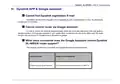
3. If you only want to access Dynalink home VPN for certain service, go ahead to Export the OpenVPN
Configuration to file (client.ovpn) directly. If you want to route all your Internet traffic through VPN
(e.g., to get around some Internet blocking mechanism), then you need to select the Advanced
Settings and select Internet and local network, then export the Open VPN configuration file.

| General | Details |
|---|---|
| Name | Dynalink DL-WRX36 WiFi 6 AX3600 Router User Guide |
| Make | DynaLink |
| Language | English |
| Filetype | PDF (Download) |
| File size | 1.36 MB |
 (1 votes, average: 5.00 out of 5)
 Loading...
If you have any questions regarding Dynalink DL-WRX36 WiFi 6 AX3600 Router User Guide, please ask here and describe the problem in detail.

Dynalink AX3600 Stream WiFi Router User Guide


D-Link R95 BE9500 Wi-Fi 7 Router User Guide

LINKSYS WRT54G Wireless G Router Instructions

netis N4 Wireless Dual Band Router Installation Guide

D LINK R15 Router using Eagle Pro AI App User Guide

ADVANTECH ICR-2531 LTE Router User Manual

PoEWit R-4 Preconfigured Enterprise-Class Router User Guide

TELTONIKA RUTX14 CAT12 Cellular IoT Router User Guide

TP-Link Archer AX3000 Gigabit Wi-Fi Router Installation Guide

TP-Link Tri-Band Wi-Fi 6E Router User Guide

TP-Link Archer AX53 Gigabit Wi-Fi 6 Router User Guide