
Dynalink DL-WRX36 WiFi 6 AX3600 Router User Guide








DynalinkXDL-WRX36 | FAQ & Troubleshooting
How to unbind my current account from Dynalink APP
In order to configure router via mobile, user needs to bind an email account to Dynalink APP. However,
it is feasible for users to switch the accounts by binding/unbinding process. Follow the instruction described in the
user guide 6. Google assistant to bind the account and remove the current account according to the steps below.
Note: Please be aware that once an account unbound, your router will back to factory default settings
automatically.
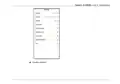
1. Launch the Dynalink APP.
2. Tap burger menu button in the
upper left corner of home page.
3. Tap the My Dynalink devices.

| General | Details |
|---|---|
| Name | Dynalink DL-WRX36 WiFi 6 AX3600 Router User Guide |
| Make | DynaLink |
| Language | English |
| Filetype | PDF (Download) |
| File size | 1.36 MB |
 (1 votes, average: 5.00 out of 5)
 Loading...
If you have any questions regarding Dynalink DL-WRX36 WiFi 6 AX3600 Router User Guide, please ask here and describe the problem in detail.

Dynalink AX3600 Stream WiFi Router User Guide


ASUS ExpertWiFi EBG15 Gigabit VPN Router User Guide

ASUS RTAX6P00 ZenWiFi Hybrid MoCA Mesh Router User Manual

FALCON MU5001 5G Router User Manual

ASUS RT-AX82U AX5400 Dual Band WiFi Router User Guide

xunison D50-5G 5G-LTE Wi-Fi 6 Home Router User Guide

Tenda RX2 Pro Dual Band WiFi 6 Router Installation Guide

legrand RT-20 Router User Guide

TP-Link ER8411 Omada VPN Router with 10G Ports Installation Guide

ASUS RT-BE7200 Dual Band Wi-Fi Router User Guide

NETGEAR N150 Wireless Router Installation Guide