
Tenda Wi-Fi 6 Router Installation Guide


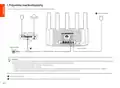


II. Connect the router to the internet
1. Connect your smartphone or computer to the WiFi network of the router. The WiFi name can be found on the bottom label of the device.
2. Start a web browser and enter tendawifi.com in the address bar to access the router's web UI.
3. Follow the onscreen setup wizard to connect the router to the internet.
Done. When the LED indicator is solid green, the network connection is successful.
To access the internet with:
• WiFi-enabled devices: Connect to the new WiFi network you set.
• Wired devices: Connect to a LAN port of the router using an Ethernet cable.
Jack, ports and buttons
LED indicator
The jacks, ports and buttons may vary with models. The actual product prevails.
LED indicator
Scenario
Status
Description
Jack/Port/Button
Description
Startup
Solid green
Solid green
The system is starting up.
The router is connected to the internet.
Used to start the WPS negotiation process, or to reset the router.
− WPS: Through the WPS negotiation, you can connect to the WiFi network
of the router without entering the password.
Blinking green
slowly
Not configured and the router is not connected to
the internet.
Method: Press the button 1-3 seconds, and the LED indicator blinks green
fast. Within 2 minutes, enable the WPS function of the other
WPS-supported device to establish a WPS connection.
− Reset method: When the router is working normally, hold the button down
for about 8 seconds, and then release it when the LED
indicator blinks orange fast. The router is restored to
WPS/RST
Internet
Blinking red
slowly
Configured but the router failed to connect to the
internet.
connection
Blinking orange
slowly
Configured but no Ethernet cable is connected to
the WAN port.
factory settings.
Blinking green
quickly
Pending for or performing WPS negotiation (valid
within 2 minutes)
WPS
LED indicator
Gigabit LAN/IPTV port.
Ethernet
cable
Blinking green
quickly for 3
A device is connected to or disconnected from an
Ethernet port of the router.
3/IPTV
It is a LAN port by default. When the IPTV function is enabled, it can only serve
as an IPTV port to connect to a set-top box.
connection seconds
Gigabit LAN port.
PPPoE user
1, 2
Blinking green
Used to connect to such devices as computers, switches and game machines.
PPPoE user name and password are imported
successfully.
name and
password
importing
quickly for 8
seconds
Gigabit WAN port.
WAN
Used to connect to a modem or the Ethernet jack for internet access.
Blinking orange
quickly
Resetting
Restoring to factory settings.
POWER
Power jack.
02

| General | Details |
|---|---|
| Name | Tenda Wi-Fi 6 Router Installation Guide |
| Make | Tenda |
| Language | English |
| Filetype | PDF (Download) |
| File size | 2.28 MB |
 (1 votes, average: 5.00 out of 5)
 Loading...
If you have any questions regarding Tenda Wi-Fi 6 Router Installation Guide, please ask here and describe the problem in detail.

Tenda AXE5700 Wi-Fi 6E Router User Manual

Tenda AX1800 Wi-Fi 6 5G NR Router User Manual

Tenda RX2LP Dual Band Gigabit Wi-Fi 6 Router Installation Guide

Tenda TX2L ProV1.0 WiFi 6 Router Installation Guide

Tenda RX12V1.0 Wi-Fi 6 6E Router Installation Guide

Tenda 4G09V1.0 Wifi Router User Manual

Tenda AC19 Dual Band Gigabit WiFi Router Installation Guide

Tenda 4G06V1.0 4G LTE and VoLTE Router User Guide

Tenda 4G03 N300 Wi-Fi 4G LTE Router Installation Guide

Tenda N300 WiFi VDSL/ADSL Modem Router V300 Installation Guide


COMFAST M0304517 Wireless Router Installation Guide

Xiaomi AX3000T Wireless Router User Manual

FLEX FX4221 24V Trim Router Instruction Manual

TP-Link BE19000 Tri-Band Wi-Fi 7 Router Installation Guide

ASUS BT8 Tri Band WiFi Router User Guide

amped wireless RTA1750 High Power Wi-Fi Router User Guide
SIERRA WIRELESS AirLink LX40 Enterprise LTE Router User Guide

ASUS RT-ACRH18 Dual band AC WiFi Router User Guide

Juniper NETWORKS SSR120 Router User Guide

D-Link M30 2-pack Mesh Router User Guide