
Home > UBIQUITI NETWORKS > UBIQUITI NETWORKS 2.4GHz Air Router User Guide
UBIQUITI NETWORKS 2.4GHz Air Router User Guide










AirRouter User Guide
Chapter 3: AirOS™
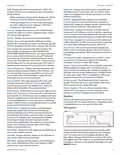
Click Scan to refresh the list of available wireless networks.
The Site Survey channel scan list can be modified using
the Channel Scan List control.
The benefits of this are private networking and inherent
security. Using channel-shifting, networks instantly
become invisible to the millions of Wi-Fi devices in the
world.
Hide SSID (Only applicable in Access Point and Access
Point WDS mode.) When this option is enabled, the SSID
(wireless network name) will not be broadcast to wireless
stations.
Frequency, MHz (Only applicable in Access Point or
Access Point WDS mode.) Select the wireless channel
while operating in Access Point mode. Multiple frequency
channels are available to avoid interference between
nearby access points. The channel list varies depending on
the selected country code, IEEE 802.11 mode and Channel
Spectrum Width and Channel Shifting option.
Lock to AP MAC (Only applicable in Station and Station
WDS mode.) This allows the station to always maintain a
connection to a particular AP with a specific MAC address.
This is useful as sometimes there can be multiple access
points using the same SSID. With AP lock on, the station
will lock to a specific MAC address and not roam between
several Access Points with the same SSID.
Obey regulatory Rules Option must remain enabled
while it will force the transmit output power to be
compliant with the regulations of the selected country. In
this case, it will not be possible to set equivalent isotropic
radiated power (EIRP) above the amount allowed per
regulatory domain (different maximum output power
levels and antenna gains are allowed for each IEEE
802.11b/g/n regulatory domain thus country).
Country Code Each country has their own power level
and frequency regulations. To ensure the AirRouter
operates under the necessary regulatory compliance
rules, be sure to select the country where your device
will be used. The channel list, output power limits, IEEE
802.11 and Channel Spectrum Width modes will be tuned
according to the regulations of the selected country.
Extension Channel (Only applicable in Access Point or
Access Point WDS mode with 40 MHz channel width.)
Indicates the use of channel bonding that allows the
AirMax network to use two channels at once. Using
two channels improves the performance of the Wi-Fi
connection. It is automatically selected by the system.
IEEE 802.11 Mode Displays the radio standards used for
the AirRouter.
Channel Width Displays the spectral width of the radio
channel. Supported wireless channel spectrum widths:
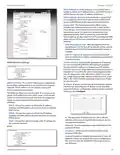
Channel Scan List, MHz (Only applicable in Station or
Station WDS mode.) This will confine scanning only to the
selected channels. The benefits of this are faster scanning
as well as filtering out unwanted AP’s in the results. Site
Survey tool will look for the Access Points in selected
channels only. Once enabled, click Edit to open the
Channel Scan List window.
• 5 MHz is the channel spectrum with the width of 5 MHz
(known as Quarter-Rate mode).
• 10 MHz is the channel spectrum with the width of 10
MHz (known as Half-Rate mode).
• 20 MHz is the standard channel spectrum width
(selected by default).
• 40 MHz is the channel spectrum with the width of 40
MHz.
• Auto 20/40MHz (Only applicable in Station or Station
WDS mode.) It offers better compatibility.
Note: Laptops cannot connect to the AirRouter
when the channel width is set to 5/10 MHz.
Some devices may not be able to connect using
the 40 MHz setting.
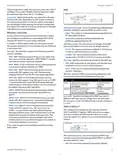
Select the channels that you want to scan and click OK or
click Close to close the window without any selections.
Output Power This defines the maximum average
transmit output power (in dBm) of the AirRouter. The
output power can be specified using the slider. When
entering the output power value manually, the slider
position will change according to the entered value. The
transmit power level maximum is limited according to the
country regulations. Output power is the output power
delivered to the internal antenna.
Channel Shifting Enables special channels which have
the frequency offset from the standard 802.11b/g/n
channels. This is a proprietary Ubiquiti Networks
developed feature. While 802.11 networks have standard
channels spaced every 5 MHz apart, channel shifting uses
non-standard channels offset from the standard channels.
All the channels can be shifted by 5 MHz (in 802.11n) or
2 MHz (in 802.11bgn) from the default central channel
frequency.
Max Data Rate, Mbps This defines the data rate (in Mbps)
at which the device should transmit wireless packets.
You can fix a specific data rate between MCS 0 and MCS
7. It is recommended that you use the automatic option,
especially if you are having trouble getting connected or
losing data at a higher rate. In this case, the lower data
rates will be used automatically. If you select 20 MHz
Note: Channel shifting is not compatible with
legacy products.
Ubiquiti Networks, Inc.
10

| General | Details |
|---|---|
| Name | UBIQUITI NETWORKS 2.4GHz Air Router User Guide |
| Make | UBIQUITI NETWORKS |
| Language | English |
| Filetype | PDF (Download) |
| File size | 5.15 MB |
 (1 votes, average: 5.00 out of 5)
 Loading...
If you have any questions regarding UBIQUITI NETWORKS 2.4GHz Air Router User Guide, please ask here and describe the problem in detail.

UBIQUITI NETWORKS ER-12 10 Port Gigabit Router User Guide


NETGEAR RAX5 Model AX1600 WiFi 6 Router User Guide

Teltonika RUT955 Dual SIM 4G LTE and WiFi Cellular Router User Guide
HIKVISION AX1500 Pro WiFi Router User Guide
GL iNet GL-B2200 Tri-Band Wireless Gigabit Router User Manual

Tenda 4G03 N300 Wifi 4G LTE Router Installation Guide

D-Link DSL-G604T Wireless ADSL Router Instruction Manual

LANCOM 1793VA VPN Router User Guide

DrayTek Vigor2962 High Performance 2.5G Router User Manual

AZORES AX6600 WiFi-6 Wireless Router Instruction Manual

HUAWEI Outdoor CPE B2368 CAT12 LTE Router with Antenna User Guide