
Home > UBIQUITI NETWORKS > UBIQUITI NETWORKS 2.4GHz Air Router User Guide
UBIQUITI NETWORKS 2.4GHz Air Router User Guide










AirRouter User Guide
Chapter 2: Installation
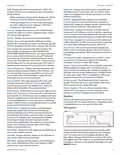
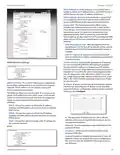
7. Customize your wireless network and secure your
network by entering the basic wireless network
information:
Connecting a Wireless Client to the
AirRouter
Windows
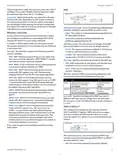
1. Go to Connect to Network.
Windows 7 Right-click on the Network icon.
Windows Vista Go to Start > Connect To.
Windows XP Right-click the Wireless Network icon
in the System Tray (lower right corner of the screen)
and then click View Available Wireless Networks.
2. Select the wireless network (SSID) that you entered in
the SSID field in step 7a and then click Connect.
3. Type the passphrase that you entered in the WPA
Preshared Key field in step 7c and click OK or Connect.
4. Launch your web browser to begin browsing the web.
a. Enter a name for your wireless network in the SSID field.
b. Select the type of security that you want to use for your
Mac
1. Click the AirPort
wireless network from the Security drop-down.
icon in the menu bar (top left side
of the screen).
Note: WPA2-AES security is the srongest wireless
security method. If all of your devices support this
option, it is recommended that you select it.
2. Select the wireless network (SSID) that you entered in
the SSID field in step 7a.
c. Enter a passphrase in the WPA Preshared Key field.
You can click the Show option to see the characters
that you are typing.
3. Type the passphrase that you entered in the WPA
Preshared Key field in step 7c and click OK.
4. Once connected the AirPort
icon will change from
d. Click Change. You will be prompted to apply the
gray to solid black. The number of black lines indicates
the signal strength. Launch your web browser to begin
browsing the web.
changes. To proceed, click Apply.
8. If necessary, disconnect the power and Ethernet cables
to move the router so that you can connect it to your
Internet connection.
9. Connect an Ethernet cable from your broadband
modem or other Internet connection to the port
labeled <···> on the back of the AirRouter.
Congratulations! Basic router installation is complete.
Proceed to Connecting a Wireless Client to the AirRouter
for information on connecting wireless clients.
Ubiquiti Networks, Inc.
3

| General | Details |
|---|---|
| Name | UBIQUITI NETWORKS 2.4GHz Air Router User Guide |
| Make | UBIQUITI NETWORKS |
| Language | English |
| Filetype | PDF (Download) |
| File size | 5.15 MB |
 (1 votes, average: 5.00 out of 5)
 Loading...
If you have any questions regarding UBIQUITI NETWORKS 2.4GHz Air Router User Guide, please ask here and describe the problem in detail.

UBIQUITI NETWORKS ER-12 10 Port Gigabit Router User Guide


TP-Link AC1900 Archer AC1900 MU-MIMO Wi-Fi Router User Guide

D-Link N300 EAGLE PRO AI N300 4G Router User Guide

TP-Link TL-WR841N 300Mbps Wireless N Router Installation Guide
REYEE RG-E4 Networking Router Installation Guide

TP-Link Omada Gigabit VPN Router ER605 Installation Guide

audiocodes Mediant 500L Multi Service Router User Guide

TP-Link X10 Deco Router Installation Guide

YESKAMO IPC Router Expand NVR Wifi Area and Strengthen Camera Signal User Guide

xiaomi 610645 4A Mi Router Instruction Manual

BEC RidgeWave 7000 R26 MaxRange Gigabit LTE Outdoor Router Owner’s Manual