
Home > UBIQUITI NETWORKS > UBIQUITI NETWORKS 2.4GHz Air Router User Guide
UBIQUITI NETWORKS 2.4GHz Air Router User Guide










AirRouter User Guide
Chapter 3: AirOS™
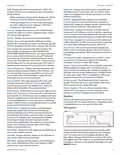
intended for use within the same network segment only.
Auto IP always starts with 169.254.X.Y while X and Y are
last 2 digits from the MAC address of the device (i.e. if the
MAC is 00:15:6D:A3:04:FB, Generated unique Auto IP will
be 169.254.4.251).
IP Aliases IP aliases for the internal and external network
interface can be configured. IP Aliases can be specified
using the IP Aliases configuration window which is opened
when you click Configure.
• Static Choose this option to assign the static IP settings
for the bridge interface.
Note: IP Address and Netmask settings should
be consistent with the address space of the
network segment where the AirRouter resides.
- IP Address Enter the IP address of the device while
Static Bridge IP Address mode is selected. This IP will
be used for AirRouter management purposes.
- Netmask This is a value which when expanded into
binary provides a mapping to define which portions
of IP address groups can be classified as host devices
and network devices. Netmask defines the address
space of the network segment where the AirRouter
resides. 255.255.255.0 (or /24) Netmask is commonly
used on many C Class IP networks.
• IP The alternative IP address for the LAN or WLAN
interface, which can be used for the routing or device
management purposes.
• Netmask The network address space identifier for the
particular IP Alias.
• Comments Field used for a brief description of the
purpose of the alias.
- Gateway IP Typically, this is the IP address of the host
router which provides the point of connection to the
Internet. This can be a DSL modem, Cable modem, or
a WISP gateway router. The AirRouter will direct the
packets of data to the gateway if the destination host
is not within the local network.
• Enabled Enables or disables the particular IP Alias. All
added IP Aliases are saved in the system configuration
file, however only the enabled IP Aliases are active on
the AirRouter.
Newly IP Aliases can be saved by click the Save button
or discarded by clicking the Cancel button in the Aliases
configuration window.
Note: In Bridge mode, the Gateway IP address
should be from the same address space (on the
same network segment) as the AirRouter.
Firewall Settings
- Primary DNS IP Enter the IP address of the Primary
Firewall functionality on the bridge interface can be
enabled by selecting Enable Firewall. Bridge Firewall
rules can be configured, enabled or disabled while using
Firewall configuration window which opens when you
click Configure.
DNS (Domain Name System) server.
- Secondary DNS IP Enter the IP address of the
Secondary DNS (Domain Name System) server. This
entry is optional and only used if the primary DNS
server is not responding.
Spanning Tree Protocol Multiple interconnected bridges
create larger networks using the IEEE 802.1d Spanning
Tree Protocol (STP), which is used for finding the shortest
path within network and to eliminate loops from the
topology.
If enabled, the AirRouter Bridge will communicate with
other network devices by sending and receiving Bridge
Protocol Data Units (BPDU). STP should be turned off
(selected by default) when the AirRouter is the only bridge
on the LAN or when there are no loops in the topology
as there is no need for the bridge to participate in the
Spanning Tree Protocol in this case.
Auto IP Aliasing Automatically generates an IP Address
for the corresponding WLAN/LAN interface if enabled.
The generated IP address is a unique Class B IP address
from the 169.254.X.Y range (Netmask 255.255.0.0) which is
Ubiquiti Networks, Inc.
14

| General | Details |
|---|---|
| Name | UBIQUITI NETWORKS 2.4GHz Air Router User Guide |
| Make | UBIQUITI NETWORKS |
| Language | English |
| Filetype | PDF (Download) |
| File size | 5.15 MB |
 (1 votes, average: 5.00 out of 5)
 Loading...
If you have any questions regarding UBIQUITI NETWORKS 2.4GHz Air Router User Guide, please ask here and describe the problem in detail.

UBIQUITI NETWORKS ER-12 10 Port Gigabit Router User Guide


NETGEAR CBR750 Tri Band Mesh WiFi Router User Guide

PRISMXR P1411 Streaming Link Air Bridge WiFi6 Router User Guide

STRONG 4G+ROUTER1200 Wi-Fi LTE Router Installation Guide

PHILIPS PH-001 LTE Mi-Fi Router User Manual

AZORES AX3000 PRO WiFi-6 Wireless Router Instruction Manual

Adtran 854-(v)6 Service Delivery Gateway WiFi 6 2.5G Router User Guide

cradlepoint CTR35 Wireless Router User Guide

VOX FTTB Mikrotik Router Installation Guide

peplink MAX Transit Pro Router User Manual

Vantron R102 Router Instruction Manual