
Home > UBIQUITI NETWORKS > UBIQUITI NETWORKS 2.4GHz Air Router User Guide
UBIQUITI NETWORKS 2.4GHz Air Router User Guide










AirRouter User Guide
Chapter 3: AirOS™
Select the IP Address option PPPoE to configure a PPPoE
tunnel in order to connect to an ISP. Only the external
network interface can be configured as a PPPoE client as
all the traffic will be sent via this tunnel. The IP address,
Default gateway IP and DNS server IP address will be
obtained from the PPPoE server after PPPoE connection is
established. The broadcast address is used for the PPPoE
server discovery and tunnel establishment.
• DMZ Management Port Web Management Port for
the AirRouter (TCP/IP port 80 by default) will be used for
the host device if the DMZ Management Port option is
enabled.
• DMZ IP Enter the IP address of the internal network
device and the device will be completely exposed to the
external network.
Auto IP Aliasing Automatically generates an IP Address
for the corresponding WLAN/LAN interface if enabled.
The generated IP address is a unique Class B IP address
from the 169.254.X.Y range (Netmask 255.255.0.0) which is
intended for use within the same network segment only.
Auto IP always starts with 169.254.X.Y while X and Y are
last 2 digits from the MAC address of the device (i.e. if the
MAC is 00:15:6D:A3:04:FB, Generated unique Auto IP will
be 169.254.4.251).
A valid username and password are required for the PPPoE
connection:
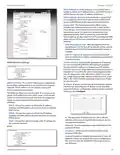
IP Aliases IP aliases for the internal and external network
interface can be configured. IP Aliases can be specified
using the IP Aliases configuration window which is opened
when you click Configure.
PPPoE Username Username to connect to the server
(must match the configured on the PPPoE server).
PPPoE Password Password to connect to the server
(must match the configured on the PPPoE server).
Show Check this box to display the PPPoE password
characters.
PPPoE MTU/MRU The size (in bytes) of the Maximum
Transmission Unit (MTU) and Maximum Receive Unit
(MRU) used for data encapsulation while transferring
through the PPP tunnel; (MTU/MRU default value: 1492)
PPPoE Encryption Enables the use of MPPE encryption.
• IP The alternative IP address for the LAN or WLAN
interface, which can be used for the routing or device
management purposes.
The IP address of the PPP interface will be displayed on
the Main tab next to the PPP interface statistics if it is
obtained through the established PPPoE connection,
otherwise a Not Connected message will be displayed.
• Netmask The network address space identifier for the
particular IP Alias.
A PPPoE tunnel reconnection routine can be initiated
using the Reconnect button which is located in the Main
tab next to the PPP interface statistics.
• Comments Field used for a brief description of the
purpose of the alias.
• Enabled Enables or disables the particular IP Alias. All
added IP Aliases are saved in the system configuration
file, however only the enabled IP Aliases are active on
the AirRouter.
Newly IP Aliases can be saved by click the Save button
or discarded by clicking the Cancel button in the Aliases
configuration window.
Change MAC Address When enabled, the MAC address
of the respective interface can be changed. This is
especially useful if your ISP only assigns one valid IP
address and it is associated to a specific MAC address;
usually used by Cable operators or some WISPs.
Enable DMZ The Demilitarized zone (DMZ) can be
enabled and used so that services such as Web Servers,
Proxy Servers, and E-mail Servers can still serve the local
network and are at the same time isolated from it for
additional security. DMZ is commonly used with NAT
functionality as an alternative to Port Forwarding but DMZ
opens all ports of the host network device to the external
network..
Ubiquiti Networks, Inc.
18

| General | Details |
|---|---|
| Name | UBIQUITI NETWORKS 2.4GHz Air Router User Guide |
| Make | UBIQUITI NETWORKS |
| Language | English |
| Filetype | PDF (Download) |
| File size | 5.15 MB |
 (1 votes, average: 5.00 out of 5)
 Loading...
If you have any questions regarding UBIQUITI NETWORKS 2.4GHz Air Router User Guide, please ask here and describe the problem in detail.

UBIQUITI NETWORKS ER-12 10 Port Gigabit Router User Guide


ASUS ROG Rapture GT-BE19000 Wi-Fi 7 Tri Band Gaming Router User Guide

WM Systems M2M LTE Cat.4 Router Installation Guide

ASUS XT8 AX6600 Tri-Band Wi-Fi Router User Guide

ADDAC System ADDAC809 Chain Router User Guide

neptronic RPB11 RPB BACnet Router Instruction Manual

TP-Link T120200-2B1 Gigabit VPN Router Instructions

TP-Link AC1900 Wi-Fi Router Installation Guide

FALCON 150 Mbps 4G LTE Portable Router User Manual

ENDY ESG610 Cloud Managed VPN Router User Guide

CNCU DZB200 Easy Route CNC Router Instructions