
Home > UBIQUITI NETWORKS > UBIQUITI NETWORKS 2.4GHz Air Router User Guide
UBIQUITI NETWORKS 2.4GHz Air Router User Guide










AirRouter User Guide
Chapter 3: AirOS™
Do not switch off, do not reboot and do not disconnect
the device from the power supply during the firmware
upgrade process as these actions will damage the device!
Configuration Management
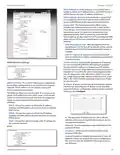
The AirRouter configuration is stored in plain text file
(cfg file). Use the Configuration Management controls to
backup, restore or update the system configuration file:
It is highly recommended that you backup the system
configuration and the Support Info file before uploading
the new configuration.
Close this window At this point, closes the firmware
upgrade window if activated. This action will not cancel
the firmware upgrade process.
Backup Configuration Click Download to download the
current system configuration file.
Reboot Activate Reboot control in order to initiate full
reboot cycle of the device. Reboot is the same as the
hardware reboot which is similar to the power off - power
on cycle. The system configuration is not modified after
the reboot cycle completes. Any non-applied changes will
be lost.
Upload Configuration Click Browse to navigate to and
select the new configuration file or specify the full path
to the configuration file location. Click Upload to use a
previously downloaded configuration file to the system.
The settings of the new configuration will be visible in the
Wireless, Network, Advanced, Services and System tabs of
the Web Management Interface.
Reset to Defaults Use this to reset the AirRouter to
the factory default settings. This option will reboot the
AirRouter and all factory default settings will be restored.
You may want to use the Backup Configuration option
to download your current settings before selecting this
option.
Note: The new configuration is active after
clicking Apply and the system reboot
cycle is completed. The previous system
configuration is deleted after you click Apply. It
is highly recommended to backup the system
configuration before uploading the new
configuration.
Support Info This will generate a support information
file that the Ubiquiti support engineers can use when
providing customer support. This file only needs be
generated at their request.
Device Maintenance
The controls in this section are dedicated for the device
maintenance routines: rebooting, resetting, generating of
the support information report.
Tools
Site Survey
The Site Survey tool will search for wireless networks
in range on all supported channels while the device is
operating in Access Point or Station mode. In Station mode,
the channel list can be modified. Refer to the section Link
Setup for details on channel list customization.
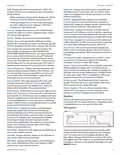
Site Survey reports the MAC Address, SSID, Device
Name, Encryption type (if any), Signal Strength/Noise in
dBm, Frequency in GHz and the wireless channel of all
surrounding Access Points.
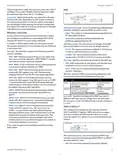
Firmware Version Shows the current firmware version.
Build Number Displays the build number of the firmware
version loaded.
Update Click to update the device with new firmware.
The device firmware update is compatible with all
configuration settings. System configurations are
preserved while the device is updated with a new
firmware version.
• Current Firmware Displays the version of the AirOS
firmware which is currently operating.
Refresh the window using the Scan button.
• Firmware File Click Browse to locate new firmware
file. Select the file and click Open. Once you’ve selected
a new firmware file, click Upload to upload the new
firmware to the device. Click Close this window to
cancel the new firmware upload process.
Update The Update button should be activated in order
to proceed with firmware upgrade routine (new firmware
image should be uploaded into the system first). Please
be patient, as the firmware upgrade routine can take
3-7 minutes. The AirRouter will be inaccessible until the
firmware upgrade routine is completed.
Ubiquiti Networks, Inc.
30

| General | Details |
|---|---|
| Name | UBIQUITI NETWORKS 2.4GHz Air Router User Guide |
| Make | UBIQUITI NETWORKS |
| Language | English |
| Filetype | PDF (Download) |
| File size | 5.15 MB |
 (1 votes, average: 5.00 out of 5)
 Loading...
If you have any questions regarding UBIQUITI NETWORKS 2.4GHz Air Router User Guide, please ask here and describe the problem in detail.

UBIQUITI NETWORKS ER-12 10 Port Gigabit Router User Guide


TP-Link 7106511948 Outdoor Router Installation Guide

Tenda RX12V1.0 Wi-Fi 6 6E Router Installation Guide

D-Link G403C 4G LTE N300 Wi-Fi Router User Guide

CARRY CDA3-20 M4 Mesh Wi-Fi Router User Guide

EnGenius XG60-FIT FitXpress 4 port Gigabit PoE plus VPV Router Owner’s Manual

HUAWEI B628-265 4G Router User Guide

hyperoptic EX3301 Hyperhub Router Instruction Manual

ASUS RTBE7900 BE3600 Dual-band Wi-Fi Router User Guide

NETGEAR M5 Nighthawk 5G Mobile Router User Guide

TP-Link BE450 Dual Band Wi-Fi 7 Router Installation Guide