
Home > UBIQUITI NETWORKS > UBIQUITI NETWORKS 2.4GHz Air Router User Guide
UBIQUITI NETWORKS 2.4GHz Air Router User Guide


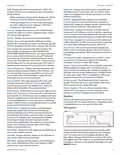


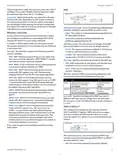


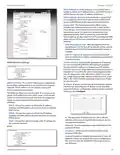




AirRouter User Guide
Chapter 3: AirOS™
System uses Request to Send/Clear to Send frames for the
handshake which provide collision reduction for access
point with hidden stations. The stations are sending a
RTS frame first while data is send only after handshake
with an AP is completed. Stations respond with the CTS
frame to the RTS which provides clear media for the
requesting station to send the data. CTS collision control
management has a time interval defined during which
all other stations hold off transmission and wait until the
requesting station finishes transmission.
Aggregation A part of the 802.11n standard that allows
sending multiple frames per single access to the medium
by combining frames together into one larger frame. It
creates the larger frame by combining smaller frames with
the same physical source and destination end points and
traffic class (i.e. QoS) into one large frame with a common
MAC header.
• Frames Determines the number of frames combined
on the new larger frame.
• Bytes Determines the size (in Bytes) of the larger frame.
Fragmentation Threshold Specifies the maximum size
for a packet before data is fragmented into multiple
packets. The range is 256-2346 bytes, or word “off”. Setting
the Fragmentation Threshold too low may result in poor
network performance.
Multicast Data This option allows all the Multicast packet
pass-through functionality. By default this option is
disabled.
Enable Extra Reporting Feature will report additional
information (i.e. Device Name) in the 802.11 management
frames. This information is commonly used for system
identification and status reporting in discovery utilities
and Router operating systems.
The use of fragmentation can increase the reliability
of frame transmissions. When sending smaller frames,
collisions are much less likely to occur. However lower
values of the Fragmentation Threshold will result in lower
throughput as well. It is recommended that you only make
slight modifications or none at all to the Fragmentation
Threshold value. The default setting of 2346 is optimum in
most wireless network use cases.
Enable Client Isolation This option allows packets only
to be sent from the external network to the CPE and vice
verse (applicable for Access Point and Access Point WDS
mode only). If Client Isolation is enabled, wireless stations
connected to the same AP will not be able to interconnect
on both the layer 2 (MAC) and layer 3 (IP) level. This is
effective for associated stations and WDS peers as well.
The AirRouter has a new auto-acknowledgement
timeout algorithm which dynamically optimizes the
frame acknowledgement timeout value without user
intervention. This is a critical feature required for
stabilizing long-distance 802.11n outdoor links. The user
also has the ability to enter the value manually, but it’s not
recommended.
Advanced Ethernet Settings
Distance Specify the distance value in miles (or
kilometers) using the slider or entering the value manually.
The signal strength and throughput falls off with range.
Changing the distance value will change the ACK Timeout
to the appropriate value of the distance.
Enable Autonegotiation When enabled, the device will
automatically negotiate transmission parameters with the
counterpart, such as speed and duplex. In this process, the
connected devices first share their capabilities and then
choose the fastest transmission mode they both support.
If you want to specify the values manually, disable the
Enable Autonegotiation option and select the values:
ACK Timeout Specify the ACK Timeout. Every time the
station receives the data frame it sends an ACK frame to
the AP (if transmission errors are absent). If the station
receives no ACK frame from the AP within set timeout it
re-sends the frame. The performance drops because if too
many data frames are re-sent, thus if the timeout is set
too short or too long, it will result poor connection and
throughput performance.
• Link Speed, Mbps Selects the maximum transmission
link speed. There are two options: 10Mbps or 100Mbps.
If running extra long Ethernet cables, a link speed of
10Mbps could help to achieve better stability.
• Enable Full Duplex Selects the duplex mode;
if enabled, the device operates in Full Duplex
(allowing bidirectional communication in both
directions simultaneously). While disabled, the
device operates in Half-Duplex mode (allowing
bidirectional communication in both directions, but not
simultaneously and only in one direction at a time.
Changing the ACK Timeout value will change the Distance
to the appropriate distance value for the ACK Timeout.
Auto Adjust Control will enable the ACK Timeout
Self-Configuration feature. If enabled, ACK Timeout value
will be derived dynamically using an algorithm similar to
the Conservative Rate Algorithm (used in AirOS v3.4). It
is very recommended to use the Auto Adjust option for
802.11n.
If two or more stations are located at a considerably
different distance from the Access Point they are
associated with, the highest ACK Timeout for the farthest
station should be set on the AP side. The AirRouter
includes an improved ACK Timeout algorithm.
Ubiquiti Networks, Inc.
26

| General | Details |
|---|---|
| Name | UBIQUITI NETWORKS 2.4GHz Air Router User Guide |
| Make | UBIQUITI NETWORKS |
| Language | English |
| Filetype | PDF (Download) |
| File size | 5.15 MB |
 (1 votes, average: 5.00 out of 5)
 Loading...
If you have any questions regarding UBIQUITI NETWORKS 2.4GHz Air Router User Guide, please ask here and describe the problem in detail.

UBIQUITI NETWORKS ER-12 10 Port Gigabit Router User Guide


Cudy X6 AX1800 1800mbps Dual Band Wi-Fi 6 Router Installation Guide

Cudy LT400 4G Wi-Fi Router Installation Guide

TP-Link Aginet EX1110 AXE11000 Tri-Band 10G WiFi 6E Router Installation Guide

FALCON 450-V2 4G 450 Router User Manual

Cudy LT500 Outdoor 4G WiFi Router Installation Guide

STRONG 4G LTE Wi-Fi Router Installation Guide

xunison D50-5G 5G-LTE Wi-Fi 6 Home Router User Guide

Spectrum 20230810 WiFi 6E Wall Mounted Router User Guide

TRENDnet TEW-929DRU Dual Band Wireless Gigabit Dual WAN VPN SMB Router Installation Guide

Tenda 4G05 Wi-Fi 4G LTE Router Installation Guide