
TRENDNET AX1800 Dual Band Wifi 6 Gigabit Dual Wan VPN SMB Router User Guide






TEW-929DRU
TRENDnet User’s Guide
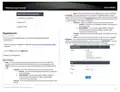
In MAC OS 10.5/10.6, in the left column, select Ethernet.
e. Configure TCP/IP to use DHCP.
In MAC 10.4, from the Configure IPv4, drop-down list, select Using
How to connect to a wireless network using the built-in Windows utility?
Note: Please note that although the following procedures provided to follow for your
operating system on configuring your network settings can be used as general
guidelines, however, it is strongly recommended that you consult your computer or
operating system manufacturer directly for assistance on the proper procedure for
connecting to a wireless network using the built-in utility.
DHCP and click the Apply Now button.
In MAC 10.5, from the Configure drop-down list, select Using DHCP
and click the Apply button.
In MAC 10.6, from the Configure drop-down list, select Using DHCP
and click the Apply button.
f. Restart your computer.
Windows 7/8/8.1/10
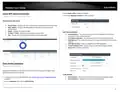
1. Open Connect to a Network by clicking the network icon (
notification area.
or
) in the
Note: If you are experiencing difficulties, please contact your computer or operating
system manufacturer for assistance.
2. In the list of available wireless networks, click the wireless network you would like to
connect to, then click Connect.
4. You may be prompted to enter a security key in order to connect to the network.
How to find your MAC address?
5. Enter in the security key corresponding to the wireless network, and click OK.
In Windows 2000/XP/Vista/7/8.1/10,
Your computer MAC addresses are also displayed in this window, however, you can type
getmac –v to display the MAC addresses only.
Windows Vista
1. Open Connect to a Network by clicking the Start Button.
To.
and then click Connect
In MAC OS 10.4,
1. Apple Menu > System Preferences > Network
2. From the Show menu, select Built-in Ethernet.
3. On the Ethernet tab, the Ethernet ID is your MAC Address.
2. In the Show list, click Wireless.
3. In the list of available wireless networks, click the wireless network you would like to
connect to, then click Connect.
4. You may be prompted to enter a security key in order to connect to the network.
In MAC OS 10.5/10.6,
5. Enter in the security key corresponding to the wireless network, and click OK.
1. Apple Menu > System Preferences > Network
2. Select Ethernet from the list on the left.
3. Click the Advanced button.
Windows XP
1. Right-click the network icon in the notification area, then click View Available
Wireless Networks.
3. On the Ethernet tab, the Ethernet ID is your MAC Address.
2. In Connect to a Network, under Available Networks, click the wireless network you
would like to connect to.
3. You may be prompted to enter a security key in order to connect to the network.
4. Enter in the security key corresponding to the wireless network, and click Connect.
© Copyright 2023 TRENDnet. All Rights Reserved.
99

| General | Details |
|---|---|
| Name | TRENDNET AX1800 Dual Band Wifi 6 Gigabit Dual Wan VPN SMB Router User Guide |
| Make | TRENDnet |
| Language | English |
| Filetype | PDF (Download) |
| File size | 2.5 MB |
 (1 votes, average: 5.00 out of 5)
 Loading...
If you have any questions regarding TRENDNET AX1800 Dual Band Wifi 6 Gigabit Dual Wan VPN SMB Router User Guide, please ask here and describe the problem in detail.

TRENDnet TEW-929DRU Dual Band Wireless Gigabit Dual WAN VPN SMB Router Installation Guide


Helmholz 700-875-LTE11, 700-875-LTE61 REX 100 Router User Guide

cradlepoint S5A245A Router User Guide

NETGEAR NIGHTHAWK BE6500 Tri Band Wi-Fi 7 Router User Guide

CP PLUS DN211-S Dual-Band 4G Router Installation Guide

DrayTek Vigor2865 Router User Guide

H3C Magic NX54 Gigabit Dual Band Wi-Fi 6 Wireless Router User Guide

D-Link N300 4G Router User Guide

OptConnect neo2 dura 4 Multi Carrier Cellular Router User Guide

WAVLINK AC1200 WiFi AP/Router Specifications

HABITECH Vigor 2865 Series WiFi Router User Guide