
TRENDNET AX1800 Dual Band Wifi 6 Gigabit Dual Wan VPN SMB Router User Guide






TEW-929DRU
TRENDnet User’s Guide
UPnP and NAT-PMP
Security > UPnP
Static routes
Network > Routing
UPnP (Universal Plug and Play) and NAT-PMP (NAT Port Mapping Protocol) allows
devices connected to a network to discover each other and automatically open the
connections or services for specific applications (e.g. instant messenger, online gaming
applications, etc.) UPnP and NAT-PMP is disabled on your router by default and should
only be enabled to allow specific applications required by your computers or devices to
allow connections through your router as they are needed.
You may want set up your router to route computers or devices on your network to
other local networks through other routers. Generally, different networks can be
determined by the IP addressing assigned to those networks. Generally speaking and for
the case of this example, your network may have 192.168.10.x IP addressing and
another network may have 192.168.20.x IP addressing and because the IP addressing of
these two networks are different, they are separate IP networks. In order to
communicate between the two separate networks, static routing needs to be
configured.
on page 6).
on page 6).
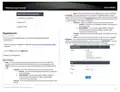
2. Click on Security and click on UPnP / NAT-PMP.
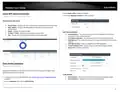
2. Click on Network and click on Routing.
3. Under the UPnP / NAT-PMP section, check the Enable UPnP / NAT-PMP functionality
option. Click Apply to save and commit the changes.
3. Review the Routing section. Click Add to add the new static route. Click Apply to save
and commit the changes.
• Interface – Select the interface to assign the route.
• Target Host-IP or Network: Enter the IP network address of the destination
network for the route. (e.g. 192.168.20.0)
• IPv4-Netmask: Enter the subnet mask of the destination network for the
route.(e.g. 255.255.255.0)
Note: When UPnP/NAT-PMP is enabled, you can check the currently open connections in
the UPnP/NAT-PMP entries table..
• IPv4-Gateway: Enter the gateway to the destination network for the route.
(e.g. 192.168.10.2)
• Metric: Enter the metric or priority of the route. The metric range is 0-9999, the
lowest number 0 being the highest priority.
© Copyright 2023 TRENDnet. All Rights Reserved.
22

| General | Details |
|---|---|
| Name | TRENDNET AX1800 Dual Band Wifi 6 Gigabit Dual Wan VPN SMB Router User Guide |
| Make | TRENDnet |
| Language | English |
| Filetype | PDF (Download) |
| File size | 2.5 MB |
 (1 votes, average: 5.00 out of 5)
 Loading...
If you have any questions regarding TRENDNET AX1800 Dual Band Wifi 6 Gigabit Dual Wan VPN SMB Router User Guide, please ask here and describe the problem in detail.

TRENDnet TEW-929DRU Dual Band Wireless Gigabit Dual WAN VPN SMB Router Installation Guide


D-Link M60 AX6000 Wi-Fi 6 Mesh Router Installation Guide

D-Link M30 AQUILA PRO AI AX3000 Wi-Fi 6 Mesh Router User Manual

Cudy RT02 Router Installation Guide

Amped Wireless R10000 High Power Wireless N 600mW Smart Router User Guide
Cradlepoint E102 Series Enterprise Router User Guide

Yifan YF325 4G Router User Guide
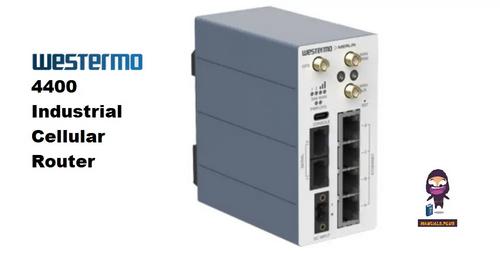
westermo 4400 Cellular Router User Guide

JUNIPer SSR120 Session Smart Router User Guide

ASUS XT12 AX11000 Tri Band WiFi Router User Guide

Woodpeckers Multi Router Instruction Manual