
TRENDNET AX1800 Dual Band Wifi 6 Gigabit Dual Wan VPN SMB Router User Guide






TEW-929DRU
TRENDnet User’s Guide
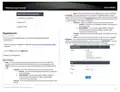
Connect wireless devices using WPS
Wireless > WPS
WPS (Wi-Fi Protected Setup) is a feature that makes it easy to connect devices to your
wireless network. If your wireless devices support WPS, you can use this feature to
easily add wireless devices to your network.
4. The WPS LED on the front panel will flash repeatedly when the WPS process is
activated. The WPS LED will flash for approximately 2 minutes.
Note: You will not be able to use WPS if you set the Hide ESSID option to enabled under
Network > Wireless 2.4GHz / Wireless 5GHz1 / Wireless 5GHz2 sections.
5. Wait for the status of the wireless client device to inidicate that connection was
successful.
There are two methods the WPS feature can easily connect your wireless devices to
your network.
PIN (Personal Identification Number)
If your wireless client device has WPS PIN (typically an 8-digit code printed on the
wireless device product label or located in the wireless device wireless software utility),
you can use this method.
• Virtual Push Button Configuration (PBC) method (Recommended)
• PIN (Personal Identification Number) Method - located in router management page
Note: Refer to your wireless client device documentation for details on the operation
of WPS.
on page 6).
2. Click on Network and click on WPS.
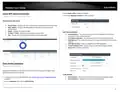
PBC (Software/Virtual Push Button)
In addition to the hardware push button located physically on your router, the router
management page also has push button which is a software or virtual push button you
can click to activate WPS on your router.
3. To add a wireless device to your network, in the Station PIN field, enter the 8-digit
numeric PIN number of the wireless client device and click ADD ENROLLLE.
Note: You may need to initiate the WPS PIN on your wireless device first when using this
method. Refer to your wireless client device documentation for details on the operation
of WPS.
on page 6).
2. Click on Wireless and click on WPS.
3. Click Enable to enable WPS and click Apply. WPS can also be enabled by wireless
band (2.4GHz / 5GHz) and External Registrar can also be enabled.
4. Wait for the status of the wireless client device to inidicate that the connection was
successful.
3. To add a wireless device to your network, under WPS Method, next to Push Button,
click the PBC Start button. Then push the WPS button on the wireless device (consult
wireless client device’s User’s Guide for length of time) you are connecting to your
router.
© Copyright 2023 TRENDnet. All Rights Reserved.
37

| General | Details |
|---|---|
| Name | TRENDNET AX1800 Dual Band Wifi 6 Gigabit Dual Wan VPN SMB Router User Guide |
| Make | TRENDnet |
| Language | English |
| Filetype | PDF (Download) |
| File size | 2.5 MB |
 (1 votes, average: 5.00 out of 5)
 Loading...
If you have any questions regarding TRENDNET AX1800 Dual Band Wifi 6 Gigabit Dual Wan VPN SMB Router User Guide, please ask here and describe the problem in detail.

TRENDnet TEW-929DRU Dual Band Wireless Gigabit Dual WAN VPN SMB Router Installation Guide


Трохи зачекайте…

YESKAMO IPC Router Expand NVR Wifi Area and Strengthen Camera Signal User Guide

NETGEAR RS600 Nighthawk Tri Band WiFi 7 Router Instruction Manual

ASUS RT-BE Series Dual Band Wi-Fi Router User Guide

GL iNet GL-MT1300 AC1300 Wireless Travel Router User Manual

xunison Hub Q50 Mesh High Performance Router User Guide

Teltonika Networks RUTM50 Router User Manual

Tenda AC5 Wi-Fi 5 Router Installation Guide

levelone WGR-8031 AC1200 Dual Band Wireless Gigabit Router Owner’s Manual

MERCKU X6 Wi-Fi 6 Mesh Dual WAN Router Installation Guide