
TRENDNET AX1800 Dual Band Wifi 6 Gigabit Dual Wan VPN SMB Router User Guide






TEW-929DRU
TRENDnet User’s Guide
operating system or mobile device User’s Guide/Manual for configuring the VPN
settings.
operating system or device on configuring PPTP VPN. The PPTP VPN settings must match
with the settings configured on the router.
Below is a reference of the additional PPTP VPN server settings if you choose to make
other configuration changes to these sections.
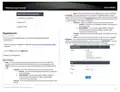
1. Click the Start button and click the Settings icon.
Start Button
Settings icon
•
•
Enable – Check this option to enable the PPTP VPN server.
Local IP – Enter an IP address for the PPTP VPN server. This should be the same
as your LAN IPv4 address to allow both access to LAN network and Internet to
VPN clients via full tunneling. (e.g. 192.168.10.1)
2. Click Network & Internet.
•
Client IP – Enter the IP address pool to distribute to your PPTP VPN clients after
they establish VPN connectivity. This should be in the same IPv4 subnet used as
your Local IP address. If using the same as the router LAN IP address, make sure
to assign a range different from your LAN DHCP server IP range. (e.g.
192.168.10.10-192.168.10.20)
•
•
•
•
•
MS-DNS 1 – Enter the IPv4 address of the primary DNS server to distribute to
PPTP VPN clients after they establish VPN connectivity. This parameter is
optional. (e.g. 8.8.8.8)
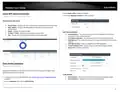
3. Click VPN in the left panel.
MS-DNS 2 – Enter the IPv4 address of the secondary DNS server to distribute to
PPTP VPN clients after they establish VPN connectivity. This parameter is
optional. (e.g. 8.8.4.4)
MS-WINS 1 – Enter the IPv4 address of the primary WINS server to distribute to
PPTP VPN clients after they establish VPN connectivity. This parameter is
optional. (e.g. 192.168.10.32)
4. Under VPN, click Add a VPN connection.
MS-WINS 2 – Enter the IPv4 address of the secondary WINS server to distribute
to PPTP VPN clients after they establish VPN connectivity. This parameter is
optional. (e.g. 192.168.10.33)
Authentication – Click the drop-down list and select the authentication
protocol to use for PPTP VPN authentication, PAP/CHAP/MS-CHAPv1/MS-
CHAPv2. It is strongly recommended to use MS-CHAPv2 since it offers the
highest degree of security from these options and is supported by most
modern computers and mobile devices.
5. Click the VPN provider drop-down list and select Windows (built-in).
Setting up the PPTP VPN client (Windows)
Note: This procedure provides a basic example how to setup PPTP VPN and establish
connectivity using a Windows® 10 client computer. If you are using a different operating
system or mobile device, please refer to the user’s guide/manual of the third party
© Copyright 2023 TRENDnet. All Rights Reserved.
55

| General | Details |
|---|---|
| Name | TRENDNET AX1800 Dual Band Wifi 6 Gigabit Dual Wan VPN SMB Router User Guide |
| Make | TRENDnet |
| Language | English |
| Filetype | PDF (Download) |
| File size | 2.5 MB |
 (1 votes, average: 5.00 out of 5)
 Loading...
If you have any questions regarding TRENDNET AX1800 Dual Band Wifi 6 Gigabit Dual Wan VPN SMB Router User Guide, please ask here and describe the problem in detail.

TRENDnet TEW-929DRU Dual Band Wireless Gigabit Dual WAN VPN SMB Router Installation Guide


CHIMA SAX3000 EasyMesh WiFi 6 Router Owner’s Manual

Starlink Mesh Nodes wifi router User Guide

TP-Link Aginet EX1110 AXE11000 Tri-Band 10G WiFi 6E Router Installation Guide

NETGEAR R6700AX Wi-Fi 6 Router Instructions

GRANDSTREAM GWN7052F Dual Band Wi-Fi Router Installation Guide

Heimgard Hub 4G LTE Mobile Broadband Router User Guide

legrand RT-20 High Performance Gigabit Router User Guide

Taiko Audio V16.x22069 Extreme Router User Manual

CP PLUS CP-GR-DE412 Dual-Band 4G Router Installation Guide

devolo Giga Bridge Connecting ONT and Router Installation Guide