
TRENDNET AX1800 Dual Band Wifi 6 Gigabit Dual Wan VPN SMB Router User Guide






TEW-929DRU
TRENDnet User’s Guide
Note: You can also enter a consecutive range of ports in the following format: 80-90
• Internal IP address – Click the drop-down list to select a device from the list or
enter the local/internal IP address of the device to forward the port/protocol
service.
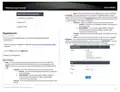
Port forwarding rules
Security > Firewall > Port Forward
Port forwarding rules allow to create inbound rules from the WAN interfaces/Internet to
your internal computers or devices for specific services/protocols such as a file server
(FTP), IP camera, web server (HTTP/HTTPS), or remote access, etc.
• Internal Port – Enter the internal port number for the service to allow.
Note: You can also enter a consecutive range of ports in the following format: 80-90
Typically, the internal port or port range is same as the external port or port range.
• Schedule – Allows you to select a schedule when the port forwarding rule should be
enabled or disabled.
on page 6).
Note: To restrict access to source IP address, after you have created the port forward
rule, click Edit on the port forwarding entry in the list and enter the IP address in Source
IP address field, then click Apply.
2. Click on Security, click on Firewall, and click on the Port Forward tab.
3. Review the settings below. When complete, click Add to add the new entry to the list
and Apply to save and commit your changes.
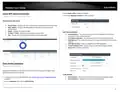
Port trigger rules
Security > Firewall > Port Trigger
Port triggering is typically used for applications that require a range of ports to be
dynamically opened on request to an internal device on your network. The router will
wait for a request on a specific port or range of ports (trigger port) from a device on
your network and once a request is detected by your router, the router will forward a
port or range of ports (match port) to the device on your network.
• Name – Enter a name for the new port forwarding rule.
• Protocol – Click the drop-down list to select the protocol for the service to allow:
TCP, UDP, TCP+UDP, or Other.
on page 6).
• External Interface – Click the drop-down list to select the external WAN interface(s)
to allow: WAN1, WAN2, or WAN1+WAN2. For example, choosing WAN1 will only
allow the port forward to work on inbound connection requests on WAN1 only and
inbound connections requests on WAN2 will be denied.
2. Click on Security, click on Firewall, and click on the Port Trigger tab.
3. Review the settings below. When complete, click Add to add the new entry to the list
and Apply to save and commit your changes.
• External Port – Enter the external port number for the service to allow.
© Copyright 2023 TRENDnet. All Rights Reserved.
40

| General | Details |
|---|---|
| Name | TRENDNET AX1800 Dual Band Wifi 6 Gigabit Dual Wan VPN SMB Router User Guide |
| Make | TRENDnet |
| Language | English |
| Filetype | PDF (Download) |
| File size | 2.5 MB |
 (1 votes, average: 5.00 out of 5)
 Loading...
If you have any questions regarding TRENDNET AX1800 Dual Band Wifi 6 Gigabit Dual Wan VPN SMB Router User Guide, please ask here and describe the problem in detail.

TRENDnet TEW-929DRU Dual Band Wireless Gigabit Dual WAN VPN SMB Router Installation Guide


NETGEAR RS700S Tri Band WiFi 7 Router Instruction Manual

TP-Link Deco X50-PoE Router User Guide

BILLION MX-220-UT-5G Advanced 5G Router Installation Guide

NETGEAR RS600 Nighthawk WiFi 7 Tri-Band Router User Manual

MikroTik G8-b Wireless Router User Guide

Siretta UPnP NAT-PMP Router Instructions

intelbras WiFiber 121 AC Wi-Force Router User Manual

DrayTek VigorLTE 200 Series LTE Router User Guide

SMAWAVE SRE410 LTE CPE Router User Guide

D-Link G530 5G Router Instructions