
TRENDNET AX1800 Dual Band Wifi 6 Gigabit Dual Wan VPN SMB Router User Guide






TEW-929DRU
TRENDnet User’s Guide
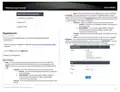
2. Click on Administrator and click on Device Mode.
Note: After changing the device mode to client bridge, the router will keep the existing
static LAN IP address. By default, the static LAN IP address: 192.168.10.1 /
255.255.255.0.
3. After the device completely apply the configuration changes and reboots, click
Network and click Site Survey to scan for available wireless networks.
4. Select the WiFi network to connect to in the list by clicking on the Select button next
to the WiFi network name or SSID and click Connect.
Note: If you do not find your WiFi network in the list, you can click Rescan to scan again
for networks.
WiFi client bridge mode
System > Device Mode
The function of client bridge mode is to extend wireless connectivity to multiple wired
Ethernet client devices. A typical application where this mode may be used is in your
home entertainment/media center where multiple network enabled media devices
require Internet or network connectivity such as an HD smart TV, game console, set top
box, or DVR. The device will first establish connectivity (similar to a wireless enabled
client device such as a laptop or mobile phone) to your wireless network (typically
provided by a wireless router or access point) and bridge the connectivity to your
network over to the wired client devices using the LAN switch ports (1-8). After selecting
and applying this mode, click on Wireless > Wireless Network and click Site Survey to
scan for the wireless network to connect and enter the wireless security key (if required)
to establish connectivity to your network. After you have successfully set up the device
to connect to your wireless network, you can plug in the device in the area where you
would like to bridge network connectivity to wired client devices using the LAN switch
ports (1-8). In this mode, the device can only connect to one band at a time (2.4GHz or
5GHz) and will not provide any of the access control features typically provided in router
mode.
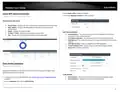
5. If the network selected network requires a WiFi password/key, enter the key under
WiFi Key/Password and click Apply to save and commit your changes.
Note: The router keep the existing static LAN IP address settings after you have
connected to a WiFi network.
on page 6).
© Copyright 2023 TRENDnet. All Rights Reserved.
36

| General | Details |
|---|---|
| Name | TRENDNET AX1800 Dual Band Wifi 6 Gigabit Dual Wan VPN SMB Router User Guide |
| Make | TRENDnet |
| Language | English |
| Filetype | PDF (Download) |
| File size | 2.5 MB |
 (1 votes, average: 5.00 out of 5)
 Loading...
If you have any questions regarding TRENDNET AX1800 Dual Band Wifi 6 Gigabit Dual Wan VPN SMB Router User Guide, please ask here and describe the problem in detail.

TRENDnet TEW-929DRU Dual Band Wireless Gigabit Dual WAN VPN SMB Router Installation Guide


TP-Link 5G AX3000 deco Whole Home Mesh Wi-Fi 6 Router User Guide

Mercury Netcomm NB16DG Fibre Router User Manual

ZTE E3330 WiFi 6 Wireless Router User Manual

TP-Link AX3000 Wi-Fi 6 Air Router Installation Guide

TELTONIKA RUT142 Router User Guide

HKBN AX5400 Oppo WiFi 6 Router User Guide

D-Link DWR-M921 4G LTE Router Installation Guide

Harvilon MT6833 5G Portable Wi-Fi Hotspot Esim Router User Guide

cradlepoint AER1600 LTE Router User Guide

TP-Link TL-WR841N 300Mbps Wireless N Router Installation Guide