
×
- 1.
- 2. Router Installation (Basic Installation And Configuration → Wireless Networking And Security → Basic Router Settings → Configure Wan1 / Wan2 Interfaces For Internet Connectivity → Firewall & Security Settings → Dynamic Dns)
- 3. Setup Your Router With Bark (Creating A Virtual Private Network (vpn) → Setting Up The Pptp Vpn Server → Setting Up The L2tp Vpn Server Without Ipsec Encryption → Setting Up Ipsec Site-to-site Vpn (psk) → Ssl Vpn Server Setup → Certificate Management)
- 4. Dual-wan (Ports → Package Contents → Dual-band Wifi 6 → 5g Support)
- 5. Pre-encrypted Wireless (Vpn → Inter-vlan Routing → Qos → Rack Mount Design → Wall Mountable → Online Firmware Updates)
- 6. Product Hardware Features (Rear Panel View → Front Panel View → Gigabit Lan Ports → Rj-45 Console Port → Led Indicators → Power Port)
- 7. Led Indicators (Grounding Point → Wan1 Interface → Wan2 Interface → Reset Button → Power Port → Power Switch)
- 8. Tew-829dru (Trendnet Users Guide)
- 9. Rack Mount Hardware Installation (Router Installation → Desktop Hardware Installation)
- 10. Basic Installation And Configuration (Connect A Network Cable From The Wan1 Port Of Your Router To Your Modem. → Connect A Network Cable From One Of The Lan Ports (1-3) Of Your Router To Your Computer. → Attach The Antennas To The Front And Back Of The Router. → Connect The Included Power Adapter From A Power Outlet To Your Router Power Port.)
- 11. Enter The Default User Name And Password (Change The Administrator Password For The Router Configuration → Access The Router Web Configuration Page)
- 12. Commonconfigurationandgeneralsetup (Wan1internetconnectionsettings → Changerouterlanipv4addresssettings → Administratorusernamepasswordconfiguration → Manuallyrenewcomputeripaddresssettings)
- 13. Interface Configuration And General Setup (Common Configuration And General Setup → Wireless Security → Wireless Network Name/ssid Configuration → Wireless Encryption Key Configuration)
- 14. Basic Router Settings (Access Your Router Management Page → Change Your Administrator Password)
- 15. Local Time (Hostname → Timezone → Time Synchronization → Clock Mode → System Properties)
- 16. Create Time Schedules (Change Lan Ipv4 Address Settings → Access Your Router Management Page → System > Schedule → Network > Lan → Common Configuration → Apply)
- 17. General Setup (Network > Lan → Advanced Settings → Override Mtu → Override Mac Address → Nat → Route Only (nat-less))
- 18. Dhcp Mode (Secondary Dns → Enable → Disable → Relay → Local Domain Name → Wins Server)
- 19. Add Static Dhcp Reservations (Add Static Host Name Entries → Dynamic Dhcp → Hostname → Mac-address → Ipv4-address → Log Queries)
- 20. Access Your Router Management Page (Add Static Arp Entries → Static Arp Section → Hostname → Ip Address → Ipv4-address)
- 21. Configure Wan1 / Wan2 Interfaces For Internet Connectivity (Access Your Router Management Page → Dual Wan Priority → Common Configuration → Wan Mode → Connect Mode → Additional Wan Settings)
- 22. Advanced Settings (Wan Vlan Tagging → Access Your Router Management Page → Use Dns Servers Advertised By Peer → Override Mtu → Use Default Gateway → Enable Ipv6 Negotiation On Ppp Link)
- 23. Ipv6 Settings (Virtual Lans (vlans) → Select The Ipv6 Wan Connection Type Provided By Your Isp → Create A Port-based Vlan → Log Into Your Router Management Page → Review The Ipv6 Internet Connection Settings → Enable Communication Between The Lan And Other Vlan Interfaces)
- 24. Vlan Ip Interface Configuration (Creating A New 802.1q Vlan → Assigning Vlan Id And Member Ports → Enabling Dhcp Server On Vlan)
- 25. Create A Port-based Vlan With 802.1q Tagging (Access Your Router Management Page → Network And Click Vlan → Under Vlan Vid:1 (lan) → Inter Vlan Routing Drop-down List → Apply To Commit And Save The Changes → To Create A New 802.1q Vlan)
- 26. Vlan Id Configuration (Vlan Ip Interface Configuration → Dhcp Server Configuration)
- 27. Creating A New 802.1q Vlan (Assigning Vlan Ids To Wireless Ssids → Vlan Ip Interface Configuration → Accessing Your Router Management Page → Inter Vlan Routing Configuration)
- 28. Dhcp Server Configuration (Vlan Configuration Example → Vlan Id Assignment → Port Vlan Membership Settings → Ssid Assignment To Vlan → Additional Vlan Settings → Wireless Network Configuration)
- 29. Inter Vlan Routing (Ip Address/subnet Mask → Application Layer Gateway (alg) → Mode → Disabled → Enabled → Relay)
- 30. Upnp And Nat-pmp (Security > Upnp → Static Routes → Network > Routing → Enable Upnp / Nat-pmp Functionality → Add Static Route → Ipv4-gateway)
- 31. Dynamic Routing Protocols (Routing Information Protocol (rip) → Access Your Router Management Page → Enable Rip On The Specified Interface → Key Authentication → Review The Rip Routing Section → Save Changes To This Section)
- 32. Access Your Router Management Page (Ospf Routing Section → Ospf Enable → Router Id → Network Type → Key Authentication → Area)
- 33. Log Into Your Router Management Page (Qos Settings → Enable Qos → Download Speed (kbit/s) → Upload Speed (kbit/s) → Calculate Overhead → Default Class)
- 34. Dynamic Dns Overview (Sign Up For Ddns Service → Access Your Router Management Page → Configure Qos Classification Rule → Dynamic Dns Settings → Enable Dynamic Dns → Ddns Provider Configuration)
- 35. Access Your Router Management Page (Samba General Settings → Timer Settings → Log File Viewer)
- 36. Wake On Lan (wol) (System > Wol (wake On Lan) → Access Your Router Management Page → Samba Users → Shared Devices → Add New Wol Schedule → Eject Device)
- 37. Wireless Settings (Wireless > Wireless (2.4ghz Or 5ghz) → Advanced Settings → Device Configuration → General Setup → Status → Enable Wireless Radio)
- 38. Wireless Security (Mac-filter → Interface Configuration → General Setup → Essid → Advanced Settings → Separate Clients)
- 39. Multiplessid (Wmmmode → Enableht20/40coexistence → Generalsetup → Hideessid → Turnoffwirelessradiobyschedule → Wirelesssecurity)
- 40. Secure Your Wireless Network (How To Choose The Type Of Security For Your Wireless Network → Setting Up Wireless Security → Wireless Encryption Types → Wpa/wpa2-personal → Wpa2-personal → Wpa3-personal)
- 41. Wpa2/wpa3-personal (Secure Your Wireless Network → Access Your Router Management Page → Wireless Security Tab → Recommended Configuration)
- 42. Selectingwpa2-psk,wpa-psk/wpa2-pskmixedmode (Selectingwpa2-eap,wpa-eap/wpa2-eapmixedmode → Securitymode → Cipher → Key → Radius-authentication-server → Radius-authentication-port)
- 43. Guest Network (Guest Dhcp → Access Your Router Management Page → Enable/disable Guest Network → Network Name(ssid) → Wireless Security → Separate Clients)
- 44. Wifi Client Bridge Mode (System > Device Mode → Access Your Router Management Page → Network → Site Survey → Wireless > Wireless Network → Wifi Key/password)
- 45. Connect Wireless Devices Using Wps (Wps (wi-fi Protected Setup) → Pin (personal Identification Number) → Virtual Push Button Configuration (pbc) Method → Access Your Router Management Page → Enable Wps)
- 46. Network Name(ssid) (Security → Status → Wps Configuration → Steps To Improve Wireless Connectivity → Wps Method → Wps Status)
- 47. Firewall&securitysettings (Generalsettings → Accessyourroutermanagementpage → Wanpingrespond)
- 48. Port Forwarding Rules (Port Trigger Rules → Security > Firewall > Port Forward → Security > Firewall > Port Trigger → Access Your Router Management Page → Schedule → Protocol)
- 49. Security (Firewall → Ip Filtering → Match Protocol → Trigger Protocol → Internal Port → Schedule)
- 50. Mac Filtering (Denial Of Service (dos) Prevention → Enable → Mode → Important Note → Name → Mac Address)
- 51. One-to-one Nat (Dmz Host → Access Your Router Management Page → Enable Dmz Host → Dmz Host Ip Address)
- 52. Internal Port (Enable Nat Loopback → Schedule → Radius Authentication → Forwarding Mode → Protocol → External Port)
- 53. Server Port (Server Secret → Confirm Secret → Timeout → Retries → Allow Local Account Login → Multiple Wan Management Settings)
- 54. Mwan Status (Wan1 (failover To Wan2) → Wan2 (failover To Wan1) → Interface Live Status → Link Tracking → Enable Tracking → Default Traffic Rule)
- 55. Web Management System (bark) (Load Balance)
- 56. Setup Your Router With Bark (System > Bark → Access Your Router Management Page → Enable Option → Configure Router Date And Time Settings → Sign Up & Activate → Get Started)
- 57. Installation (Setup → Configuration)
- 58. Tew-929dru (Trendnet Users Guide)
- 59. Child Profile Creation (Access Rules Assignment → Device Assignment)
- 60. Installation (Setup → Configuration → Dashboard → Bark Home Section → Device Assignment → Bark Functionality)
- 61. Creating A Virtual Private Network (vpn) (What Is A Vpn? → Ipsec (internet Protocol Security) Vpn → Site-to-site Vpn → Client-server Vpn → Pptp (point-to-point Tunneling Protocol) Vpn → L2tp (layer 2 Tunneling Protocol) Vpn)
- 62. Pptp Vpn Server (Setting Up The Pptp Vpn Server → Access Your Router Management Page → Service Setting → User Account Section → Authentication → Enable Option)
- 63. Enable Pptp Vpn Server (Local Ip Configuration → Client Ip Configuration → Ms-dns Settings → Ms-wins Settings → Authentication Protocol Selection → Setting Up The Pptp Vpn Client (windows))
- 64. Connection Name (Vpn → Internet Wan Ip Address → Vpn Type → Type Of Sign-in Info → Account Credentials)
- 65. L2tp Vpn Server (Setting Up The L2tp Vpn Server Without Ipsec Encryption → Access Your Router Management Page → Service Setting → Authentication → Client Ip → Enable)
- 66. Setting Up The L2tp Vpn Client (windows) With Ipsec Encryption (psk) (Note: This Procedure Provides A Basic Example How To Setup L2tp With Ipsec Vpn And Establish Connectivity Using A Windows 10 Client Computer. → Enter A Name In The Connection Name Field. → Enter The Internet Wan Ip Address, Dns, Or Dynamic Dns Hostname Of Your Router To Connect Over The Internet. → Click Vpn In The Left Panel. → Click Add A Vpn Connection. → Enter The Ipsec Pre-shared Key (psk).)
- 67. Setting Up Ipsec Site-to-site Vpn (psk) (Security > Vpn > Ipsec → Ensure That Your Router Is Connected To The Internet And Computers And Devices Are Able To Access The Internet Through Your Router → Make Sure The Lan Ip Network On Each Vpn Router Is A Different Ip Subnet → The Status Will Display Connected If The Pptp Vpn Connection Was Successful)
- 68. Vpn Router A Configuration (Access Your Router Management Page → Network → Vpn → Ipsec Tab → Overview → Site-to-site)
- 69. Authentication Key (Pre-shared Key (psk) For The Ipsec Vpn Tunnel → Apply)
- 70. Vpn Router B Configuration (Access Your Router Management Page → Network → Vpn → Ipsec → Remote → Local Subnet)
- 71. Setting Up Ipsec Server Vpn (psk With Xauth) (Access Your Router Management Page → Network Settings → Authentication Key → Connection Type → Local Field)
- 72. Vpn Client Software Requirements (Local Subnet Configuration → Ip Range Assignment → Authentication Key Setup → Xauth Account Configuration)
- 73. Pfs Exchange (Certificate List → Dpd (dead Peer Detection) → Local Id/remote Id → Authentication Key → Phase 1 Settings → Phase 2 Settings)
- 74. Setting Up Ipsec Site-to-site Vpn Failover (psk) (Vpn Router A Configuration → Network > Vpn > Ipsec → Access Your Router Management Page → Security → Multi-wan/qos → Link Tracking)
- 75. Wan Interface Configuration (Local Wan Ip Address → Local Subnet Configuration → Remote Wan Ip Address → Vpn Configuration → Connection Type Selection → Authentication Type Selection)
- 76. Access Your Router Management Page (Security → Firewall → Multi-wan/qos → Link Tracking → Authentication Key)
- 77. Local Wan1 Ip Address (Local Subnet → Remote Wan1 Ip Address → Vpn Configuration → Connection Type → Remote Subnet → Authentication Type)
- 78. Secure Socket Layer Vpn (ssl) / Openvpn (Ssl Vpn Server Setup → Access Your Router Management Page → Management And Click Certificate Management → Enter A Name For The Certificate → Authentication Key → Country Code)
- 79. Certificate List (Local Name → Organization Name → Client Configuration File → Validity Days → Enable → Cipher)
- 80. Ssl Vpn Client Setup (windows) (Enable Client Authentication)
- 81. Choose Components (Install Tap-windows Adapter → Installation Completion → Install Location)
- 82. Openvpn Client Installation (Starting Openvpn Client → Connecting To Vpn → Configuration File Setup)
- 83. Tew-929dru (Trendnet Users Guide)
- 84. Certificate Management (Log Into Your Router Management Page → Click On Management And Click On Certificate Management → Under Local Certificates, Enter A Name For The Certificate And Click Add → Click The Used For Drop-down List And Select The Appropriate Vpn Method → Review The Settings Below → Enter The Amount Of Days The Certificate Will Be Valid Before Expiration)
- 85. Openvpn (Certificate Name → Used For → Country Code → State Or Province Name → Local Name → Organization Name)
- 86. Router Maintenance And Monitoring (Managing Access To The Router Management Interface → Remote Access Management → Local Access Management → Enable Https → Enable Telnet → Enable Ssh)
- 87. Access Your Router Management Page (Tools > Diagnostics → Network Utilities → Traceroute → Nslookup → Ping → Diagnostic Tools)
- 88. Speed Test (Interface → Mwan Interface Diagnostics → Ping Default Gateway → Ping Tracking Ip → Check Ip Rules → Check Routing Table)
- 89. Backup And Restore Your Router Configuration Settings (Reboot Your Router → Access Your Router Management Page → Management > Firmware / Configuration → Management > Reboot → Administrator > Backup / Flash Firmware → Restore Backup)
- 90. Scheduled Automatic Reboot (Management > Reboot > Setting → Console Access → Command Line Interface)
- 91. Router Default Settings (Reset Your Router To Factory Defaults → Router Default Url → Router Management Page → Network Name/encryption → Wan1/wan2 Mode → Firmware / Configuration)
- 92. Upgrade Your Router Firmware (Administrator > Backup / Flash Firmware → Online Firmware Upgrade (requires Router To Be Connected To Internet))
- 93. Manual Firmware Upgrade (Access Your Router Management Page → Firmware / Configuration → Important Notes For Firmware Upgrade → Keep Settings Option)
- 94. Ping Watchdog (Check The Router Status Information → Local Access Management → System)
- 95. Channel Width (Frequency → Ssid List → Ipv4 Status → Ipv6 Status → Dhcp Mode → Operation Mode)
- 96. Interface (Default → Wan1/wan2 → Server)
- 97. Enable Ndpi (Network Interface For Ndpi → Ndpi Memory Statistics → Deep Packet Inspection → Access Your Router Management Page → Dashboard > Ndpi Statistics → Traffic Statistics)
- 98. Tew-929dru (Trendnet Users Guide → Protocol Statistics → Ndpi Chart → Real-time Graphs → Dashboard > Real-time Graphs)
- 99. Tew-929dru (Trendnet Users Guide → Cpu Load → Traffic Load)
- 100. Access Your Router Management Page (View Routing Table And Arp Entries → View Your Router Logging → Active Ipv6-routes → Active Ipv4-routes → Ipv6 Neighbors → Arp)
- 101. Tew-929dru (Trendnet Users Guide)
- 102. Vpn (Technical Specifications → Device Interface → Networking → Performance → Wan Modes → Nat Modes)
- 103. Dhcp Server/relay (Dynamic Dns: Dyn.com, No-ip.com → Wan Failover → Wan Load Balancing → Access Control → Wireless Encryption: Wpa/wpa2-psk, Wpa/wpa2-radius → Quality Of Service)
- 104. Wireless Channels (Power → Operating Temperature → Operating Humidity → Certifications → Dimensions → Weight)
- 105. Troubleshooting (Router Installation → Steps To Improve Wireless Connectivity → Accessing The Router Management Page → Internet Account Type → Wizard Setup Issues → Wireless Connectivity Problems)
- 106. How To Find Your Ip Address? (How To Configure Your Network Settings To Obtain An Ip Address Automatically Or Use Dhcp? → Command Prompt Method → Windows 2000/xp/vista/7/8/8.1/10 → Mac Os X → Windows Vista → Windows Xp/2000)
- 107. How To Connect To A Wireless Network Using The Built-in Windows Utility? (How To Find Your Mac Address? → In Mac Os 10.4, → In Mac Os 10.5/10.6, → Windows 7/8/8.1/10 → Windows Vista → Windows Xp)
- 108. Federal Communication Commission Interference Statement (Industry Canada Statement → Industry Canada Radiation Exposure Statement → Important Note → Radiation Exposure Statement → Fcc Caution → Country Code Selection Feature To Be Disabled For Products Marketed To The Us/canada)
- 109. Installation Et Utilisation (Déclaration D'exposition Aux Radiations → Types D'antenne Et Exigences → Restrictions Sur Les Antennes → Distance De Sécurité Pour L'utilisation)
- 110. Limited Warranty (Limited Lifetime Warranty → Warranty Service)
- 111. Refurbished Product (Governing Law → Warranties Exclusive → Limitation Of Liability)
×
TRENDNET AX1800 Dual Band Wifi 6 Gigabit Dual Wan VPN SMB Router User Guide






TEW-929DRU
TRENDnet User’s Guide
Based on the example, the network settings will be the following:
Secure Socket Layer VPN (SSL) / OpenVPN
Network > VPN > OpenVPN
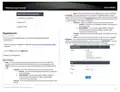
SSL VPN Server Setup
on page 6).
2. Click on Management and click Certificate Management.
3. Enter a name for the certificate to use for SSL VPN and click Add. (e.g. SSL-VPN)
4. Click the Used for drop-down list and select OpenVPN.
17. Under Authentication Key, enter the Pre-Shared Key (PSK) for the IPsec VPN tunnel
and click Apply. (e.g. 1234567890)
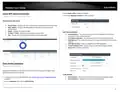
5. In the Country Code field, enter the two letter country code. (e.g. US)
6. In the State or Province Name field, enter the full name of the state or province. (e.g.
California)
© Copyright 2023 TRENDnet. All Rights Reserved.
70

| General | Details |
|---|---|
| Name | TRENDNET AX1800 Dual Band Wifi 6 Gigabit Dual Wan VPN SMB Router User Guide |
| Make | TRENDnet |
| Language | English |
| Filetype | PDF (Download) |
| File size | 2.5 MB |
 (1 votes, average: 5.00 out of 5)
 Loading...
If you have any questions regarding TRENDNET AX1800 Dual Band Wifi 6 Gigabit Dual Wan VPN SMB Router User Guide, please ask here and describe the problem in detail.

TRENDnet TEW-929DRU Dual Band Wireless Gigabit Dual WAN VPN SMB Router Installation Guide


CastleNet EBM562 Mesh WiFi Router Installation Guide

FALCON 450-V2 4G 450 Router User Manual
3onedata IRT5300L-5T2D-2P12_36 4G Wireless Router Installation Guide

D-Link DIR-X1860 AX1800 Mesh Wi-Fi 6 Router Installation Guide

HNK RAX1810 Wi-Fi Router User Manual

LINKSYS E900 Wi-Fi Router User Manual

Calix BLAST u6 Gigaspire Mesh WiFi 6 Router User Guide

Siretta GPS 5G NR Router User Guide

FIRSTNUM C600C 4G LTE Broadband Router User Manual

POOLEX WIFI-LINK Outdoor Wifi Antenna and 4G Router Instruction Manual
Table of Contents
- 1. Page 1 →
- 2. Router Installation - Basic Installation And Configuration →
- 3. Setup Your Router With Bark - Creating A Virtual Private Net... →
- 4. Dual-wan - Ports →
- 5. Pre-encrypted Wireless - Vpn →
- 6. Product Hardware Features - Rear Panel View →
- 7. Led Indicators - Grounding Point →
- 8. Tew-829dru - Trendnet Users Guide →
- 9. Rack Mount Hardware Installation - Router Installation →
- 10. Basic Installation And Configuration - Connect A Network Cab... →
- 11. Enter The Default User Name And Password - Change The Admini... →
- 12. Commonconfigurationandgeneralsetup - Wan1internetconnections... →
- 13. Interface Configuration And General Setup - Common Configura... →
- 14. Basic Router Settings - Access Your Router Management Page →
- 15. Local Time - Hostname →
- 16. Create Time Schedules - Change Lan Ipv4 Address Settings →
- 17. General Setup - Network > Lan →
- 18. Dhcp Mode - Secondary Dns →
- 19. Add Static Dhcp Reservations - Add Static Host Name Entries →
- 20. Access Your Router Management Page - Add Static Arp Entries →
- 21. Configure Wan1 / Wan2 Interfaces For Internet Connectivity -... →
- 22. Advanced Settings - Wan Vlan Tagging →
- 23. Ipv6 Settings - Virtual Lans (vlans) →
- 24. Vlan Ip Interface Configuration - Creating A New 802.1q Vlan →
- 25. Create A Port-based Vlan With 802.1q Tagging - Access Your R... →
- 26. Vlan Id Configuration - Vlan Ip Interface Configuration →
- 27. Creating A New 802.1q Vlan - Assigning Vlan Ids To Wireless ... →
- 28. Dhcp Server Configuration - Vlan Configuration Example →
- 29. Inter Vlan Routing - Ip Address/subnet Mask →
- 30. Upnp And Nat-pmp - Security > Upnp →
- 31. Dynamic Routing Protocols - Routing Information Protocol (ri... →
- 32. Access Your Router Management Page - Ospf Routing Section →
- 33. Log Into Your Router Management Page - Qos Settings →
- 34. Dynamic Dns Overview - Sign Up For Ddns Service →
- 35. Access Your Router Management Page - Samba General Settings →
- 36. Wake On Lan (wol) - System > Wol (wake On Lan) →
- 37. Wireless Settings - Wireless > Wireless (2.4ghz Or 5ghz) →
- 38. Wireless Security - Mac-filter →
- 39. Multiplessid - Wmmmode →
- 40. Secure Your Wireless Network - How To Choose The Type Of Sec... →
- 41. Wpa2/wpa3-personal - Secure Your Wireless Network →
- 42. Selectingwpa2-psk,wpa-psk/wpa2-pskmixedmode - Selectingwpa2-... →
- 43. Guest Network - Guest Dhcp →
- 44. Wifi Client Bridge Mode - System > Device Mode →
- 45. Connect Wireless Devices Using Wps - Wps (wi-fi Protected Se... →
- 46. Network Name(ssid) - Security →
- 47. Firewall&securityset... - Generalsettings →
- 48. Port Forwarding Rules - Port Trigger Rules →
- 49. Security - Firewall →
- 50. Mac Filtering - Denial Of Service (dos) Prevention →
- 51. One-to-one Nat - Dmz Host →
- 52. Internal Port - Enable Nat Loopback →
- 53. Server Port - Server Secret →
- 54. Mwan Status - Wan1 (failover To Wan2) →
- 55. Web Management System (bark) - Load Balance →
- 56. Setup Your Router With Bark - System > Bark →
- 57. Installation - Setup →
- 58. Tew-929dru - Trendnet Users Guide →
- 59. Child Profile Creation - Access Rules Assignment →
- 60. Installation - Setup →
- 61. Creating A Virtual Private Network (vpn) - What Is A Vpn? →
- 62. Pptp Vpn Server - Setting Up The Pptp Vpn Server →
- 63. Enable Pptp Vpn Server - Local Ip Configuration →
- 64. Connection Name - Vpn →
- 65. L2tp Vpn Server - Setting Up The L2tp Vpn Server Without Ips... →
- 66. Setting Up The L2tp Vpn Client (windows) With Ipsec Encrypti... →
- 67. Setting Up Ipsec Site-to-site Vpn (psk) - Security > Vpn > I... →
- 68. Vpn Router A Configuration - Access Your Router Management P... →
- 69. Authentication Key - Pre-shared Key (psk) For The Ipsec Vpn ... →
- 70. Vpn Router B Configuration - Access Your Router Management P... →
- 71. Setting Up Ipsec Server Vpn (psk With Xauth) - Access Your R... →
- 72. Vpn Client Software Requirements - Local Subnet Configuratio... →
- 73. Pfs Exchange - Certificate List →
- 74. Setting Up Ipsec Site-to-site Vpn Failover (psk) - Vpn Route... →
- 75. Wan Interface Configuration - Local Wan Ip Address →
- 76. Access Your Router Management Page - Security →
- 77. Local Wan1 Ip Address - Local Subnet →
- 78. Secure Socket Layer Vpn (ssl) / Openvpn - Ssl Vpn Server Set... →
- 79. Certificate List - Local Name →
- 80. Ssl Vpn Client Setup (windows) - Enable Client Authenticatio... →
- 81. Choose Components - Install Tap-windows Adapter →
- 82. Openvpn Client Installation - Starting Openvpn Client →
- 83. Tew-929dru - Trendnet Users Guide →
- 84. Certificate Management - Log Into Your Router Management Pag... →
- 85. Openvpn - Certificate Name →
- 86. Router Maintenance And Monitoring - Managing Access To The R... →
- 87. Access Your Router Management Page - Tools > Diagnostics →
- 88. Speed Test - Interface →
- 89. Backup And Restore Your Router Configuration Settings - Rebo... →
- 90. Scheduled Automatic Reboot - Management > Reboot > Setting →
- 91. Router Default Settings - Reset Your Router To Factory Defau... →
- 92. Upgrade Your Router Firmware - Administrator > Backup / Flas... →
- 93. Manual Firmware Upgrade - Access Your Router Management Page →
- 94. Ping Watchdog - Check The Router Status Information →
- 95. Channel Width - Frequency →
- 96. Interface - Default →
- 97. Enable Ndpi - Network Interface For Ndpi →
- 98. Tew-929dru - Trendnet Users Guide →
- 99. Tew-929dru - Trendnet Users Guide →
- 100. Access Your Router Management Page - View Routing Table And ... →
- 101. Tew-929dru - Trendnet Users Guide →
- 102. Vpn - Technical Specifications →
- 103. Dhcp Server/relay - Dynamic Dns: Dyn.com, No-ip.com →
- 104. Wireless Channels - Power →
- 105. Troubleshooting - Router Installation →
- 106. How To Find Your Ip Address? - How To Configure Your Network... →
- 107. How To Connect To A Wireless Network Using The Built-in Wind... →
- 108. Federal Communication Commission Interference Statement - In... →
- 109. Installation Et Utilisation - Déclaration D'exposition Aux R... →
- 110. Limited Warranty - Limited Lifetime Warranty →
- 111. Refurbished Product - Governing Law →