
TRENDNET AX1800 Dual Band Wifi 6 Gigabit Dual Wan VPN SMB Router User Guide






TEW-929DRU
TRENDnet User’s Guide
Wireless Networking and Security
Wireless Settings
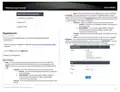
Wireless > Wireless (2.4GHz or 5GHz)
This section covers the wireless settings of your router such as wireless network names
(SSIDs), channels, 802.11 mode, and other wireless settings.
on page 6).
o
Advanced Settings
▪
Mode – By default, 802.11b/g/n and 802.11a/n/ac modes are
configured to ensure the best compatibility with wireless
client devices. These settings will allow all wireless client
devices to connect to you router’s wireless networks
including devices that support older standards such as
802.11a/b/g.
2. Click on Network and click on the wireless band you would like to configure Wireless
(2.4GHz or 5GHz)
3. Review the settings below. When complete, click Apply to save and commit your
changes.
Note: If older slower wireless client devices connect to your
wireless network, this may reduce the speed and performance
of all other wireless client devices connecting to the same
wireless network.
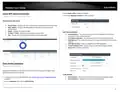
Primary SSID – This tab involves the configuration parameters for the primary SSID for a
specific wireless band.
•
Device Configuration
General Setup
o
▪
HT mode: Select the appropriate channel width for your
wireless network. For greater 2.4GHz performance/data rate
capability, you can select Auto 20/40MHz (Options: 20MHz or
Auto 20/40MHz). It is recommended to use the default
channel bandwidth settings.
For greater 5GHz performance/data rate capability, you can
select Auto 20/40/80MHz (Options: 20MHz, Auto 20/40MHz,
Auto 20/40/80MHz). It is recommended to use the default
channel width settings.
Note: Please note that the default settings may provide more
stability than the higher channel bandwidth settings such as
Auto 20/40MHz or Auto 20/40/80MHz for connectivity in busy
wireless environments where there are several wireless
networks in the area.
▪
▪
▪
Status – Displays current information about the wireless
radio/band such as SSID, BSSID/wireless MAC address,
encryption, operating channel, transmit power, bitrate, and
country/region.
Enable wireless radio – This option is checked by default to
enable the wireless radio/band. Unchecking this option will
disable the wireless radio/band including all additional SSIDs
configured on the specific band.
Turn off wireless radio by schedule – Allows you to assign a
time schedule when the band should be turned on and off.
Note: Modifying the channel settings will force currently
connected wireless client devices to disconnect and reconnect
to your router’s wireless networks.
•
20 MHz – This mode operates using a single 20MHz
channel for wireless devices connecting at 802.11n
on both 2.4GHz and 5GHz. This setting may provide
© Copyright 2023 TRENDnet. All Rights Reserved.
29

| General | Details |
|---|---|
| Name | TRENDNET AX1800 Dual Band Wifi 6 Gigabit Dual Wan VPN SMB Router User Guide |
| Make | TRENDnet |
| Language | English |
| Filetype | PDF (Download) |
| File size | 2.5 MB |
 (1 votes, average: 5.00 out of 5)
 Loading...
If you have any questions regarding TRENDNET AX1800 Dual Band Wifi 6 Gigabit Dual Wan VPN SMB Router User Guide, please ask here and describe the problem in detail.

TRENDnet TEW-929DRU Dual Band Wireless Gigabit Dual WAN VPN SMB Router Installation Guide


Linuxiac LinkStar-H68K Portable WiFi Pocket Router User Guide

TCL HH515V 5G Home Station Router User Guide

MikroTik RBMetalG-52SHPacn Metal Wireless Router User Manual

Raymarine YachtSense Link 4G Marine Cloud Router Instruction Manual

Sagemcom SAX2V1S Wave 2 Wireless Router Instruction Manual

NETGEAR N150 Wireless Router Installation Guide

TP-Link Archer AX80 AX6000 8-Stream Wi-Fi 6 Router Installation Guide

UBIQUITI ER-X-SFP Edge Router User Guide

Queclink WR100 Cellular Router User Manual

MAIYUAN AC1200M Wireless Router User Guide