
TRENDNET AX1800 Dual Band Wifi 6 Gigabit Dual Wan VPN SMB Router User Guide






TEW-929DRU
TRENDnet User’s Guide
•
Schedule – Allows you to select a schedule when the MAC filter rule should be
enabled or disabled.
MAC filtering
Security > Firewall > MAC Filtering
Every network device has a unique, 12-digit MAC (Media Access Control) address. MAC
filtering allows you to restrict access to the Internet to specific MAC addresses on your
network. MAC filtering in this section applies to both wired and wireless devices. To
create MAC filtering rules on your wireless network only, go to the Wireless Settings
section under MAC-filter. You can check the current MAC addresses of devices
connected to your router under Status > Overview under the DHCP leases section.
on page 6).
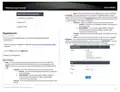
2. Click on Security, click on Firewall, and click on the MAC Filtering tab.
3. Check the Enable option to enable MAC filtering and select Mode.
Note: Please make sure to add the MAC addresses in the list first before clicking Apply.
•
•
Enable – Check this option to enable MAC filtering.
Denial of service (DoS) prevention
Security > Firewall > DoS Prevention
Mode – Select the mode used for MAC filtering.
o
Deny Mode (Blacklist) – Sets the MAC filter action to deny only the
MAC addresses listed and allow all others access to the Internet.
Allow Mode (Whitelist) – Sets the MAC filter action to allow only the
MAC address listed and deny all others access to the Internet.
Important Note: Please make sure to add the MAC addresses in this
list before applying the setting especially in Allow mode.
The router supports prevention against common denial of service (DoS) attacks.
Malicious users use denial of service attacks to temporarily or permanently disrupt the
availability of services from network resource such as your router. Typically, DoS attacks
are achieved by flooding a specific network resource by excessively sending unnecessary
requests which can cause the network device or resource to stop functioning.
o
on page 6).
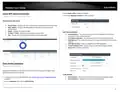
2. Click on Network, click on Firewall, and click on the DoS Prevention tab.
4. Review the settings below. When complete, click Add to add the new entry to the list
and Apply to save and commit your changes.
3. Review the settings below. When complete, Apply to save and commit your changes.
•
•
Name – Enter the name for the MAC filter rule.
MAC Address – Click the drop-down list to select a device from the list or enter
the MAC address manually. (e.g. a1:b2:c3:d4:e5:f6)
Choose the DoS prevention type to enable, TCP SYN flood, UDP flood, or ICMP flood.
•
Enable – Check this option to enable DoS prevention.
© Copyright 2023 TRENDnet. All Rights Reserved.
42

| General | Details |
|---|---|
| Name | TRENDNET AX1800 Dual Band Wifi 6 Gigabit Dual Wan VPN SMB Router User Guide |
| Make | TRENDnet |
| Language | English |
| Filetype | PDF (Download) |
| File size | 2.5 MB |
 (1 votes, average: 5.00 out of 5)
 Loading...
If you have any questions regarding TRENDNET AX1800 Dual Band Wifi 6 Gigabit Dual Wan VPN SMB Router User Guide, please ask here and describe the problem in detail.

TRENDnet TEW-929DRU Dual Band Wireless Gigabit Dual WAN VPN SMB Router Installation Guide


TP-Link AX95 AX7800 Tri Band 8 Stream WiFi 6 Router User Guide
3onedata IRT5300L-5T2D-2P12_36 4G Wireless Router Installation Guide

eero Outdoor 7 Dual Band Mesh Wi-fi Router Installation Guide

MERCUSYS MR47BE BE9300 Tri Band WiFi 7 Router User Guide

LINKSYS MX4200 Router Installation Guide

U-speed N300 Wireless Router User Manual

Mercury Netgear D7000 Fibre Modem Router User Guide
trend Router Cutter Safety Instructions

RYOBI A99LM3 Door Latch Router Template Instruction Manual

DrayTek VDSL2 Security Router User Guide