
TRENDNET AX1800 Dual Band Wifi 6 Gigabit Dual Wan VPN SMB Router User Guide






TEW-929DRU
TRENDnet User’s Guide
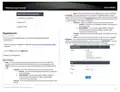
Backup and restore your router configuration settings
Management > Firmware / Configuration
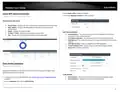
Reboot your router
Management > Reboot
You may have added many customized settings to your router and in the case that you
need to reset your router to factory defaults, all your customized settings would be lost
and would require you to manually reconfigure all of your router settings instead of
simply restoring from a backed up router configuration file.
You may want to restart your router if you are encountering difficulties with your router
and have attempted all other troubleshooting.
There are two methods that can be used to restart your router.
• Turn the router off for 10 seconds using the router On/Off switch located on the
Use this method if you are encountering difficulties with accessing your router
management page. This is also known as a hard reboot or power cycle.
OR
To backup your router configuration:
on page 6).
2. Click on Management, then click on Firmware / Configuration
3. Next to Download backup, click Generate Archive.
• Router Management Page – This is also known as a soft reboot.
on page 6).
4. Depending on your web browser settings, you may be prompted to save the
configuration file (specify the location) or the file may be downloaded automatically
to the web browser settings default download folder. (Default Filename: backup-TEW-
929DRU-YYYY-MM-DD.dat)
2. Click on Management, then click on Reboot.
3. Next to Reboots the operating system, click Perform Reboot.
To restore your router configuration:
4. Wait for the device to reboot.
1. Log into your router management page (see “Access your router management page”
on page 8).
2. Click on Administrator, then click on Backup / Flash Firmware.
3. Next to Restore backup, click Browse or Choose File.
4. A separate file navigation window should open.
5. Select the router configuration file to restore and click Upload Archive (Default
Filename: backup-TEW-929DRU-YYYY-MM-DD.dat). If prompted, click Yes or OK.
6. Wait for the router to restore settings.
© Copyright 2023 TRENDnet. All Rights Reserved.
81

| General | Details |
|---|---|
| Name | TRENDNET AX1800 Dual Band Wifi 6 Gigabit Dual Wan VPN SMB Router User Guide |
| Make | TRENDnet |
| Language | English |
| Filetype | PDF (Download) |
| File size | 2.5 MB |
 (1 votes, average: 5.00 out of 5)
 Loading...
If you have any questions regarding TRENDNET AX1800 Dual Band Wifi 6 Gigabit Dual Wan VPN SMB Router User Guide, please ask here and describe the problem in detail.

TRENDnet TEW-929DRU Dual Band Wireless Gigabit Dual WAN VPN SMB Router Installation Guide


ASUS TUF-AX5400 TUF Gaming Wi-Fi 6 Router User Guide

westermo MRD-405 4G LTE Router User Guide

airlive XPON ONU Wifi6 MESH Router User Manual

HUAWEI B636-336 4G LTE Portable Broadband Router User Guide

D-Link AX4800 Mesh Wi-Fi 6 Router Installation Guide

MOFI NETWORK MOFI6500 4G LTE Router User Manual

LANCOM SYSTEMS 1790VAW GmbH Performance Router User Guide

TCL HH515L Odnowiony Router User Guide

TP-Link GXE75 AXE5400 Tri-Band Wi-Fi 6E Gaming Router User Guide

HNK Flow AX1501 Dual Band Wi-Fi 6 AX1500 Router User Guide