
TRENDNET AX1800 Dual Band Wifi 6 Gigabit Dual Wan VPN SMB Router User Guide






TEW-929DRU
TRENDnet User’s Guide
When using a dynamic IP/DHCP WAN type from your ISP where your public IP or
Internet IP address always changes, dynamic DNS provides a method of accessing your
router or network remotely over the Internet for devices such as IP cameras, storage, or
computers hosted on the local LAN side of your router. Dynamic DNS services do thi by
assigning a custom hostname or DNS name for you to reference. Your router will send
updates to the dynamic DNS service provider if the WAN or Internet IP address(es)
change providing the emulation of a virtual fixed IP address that you can always
reference to access your router over the Internet.
Note: First, you will need to sign up for one of the DDNS service providers listed in the
Server Address drop-down list.
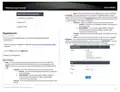
Classification Rules
1. Sign up for one of the DDNS available service providers list under Server Address.
(e.g. no-ip.com, dyndns.org etc.)
Click Add to create a new QoS classification rule. When complete, click Apply to save
and commit your changes.
on page 6).
•
•
Target – Select the QoS priority class to apply to the rule.
Direction – Select the direction of traffic in which to apply the QoS
classification, Download (Inbound Traffic) or Upload (Outbound Traffic).
Source Host – Click the drop-down list to select All (any IP address), a specific
source host IP address from the list or select Custom to define a particular
source IP address not listed.
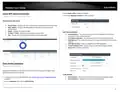
3. Click on System and click on Dynamic DNS.
4. Review the DDNS settings below. When complete, click Apply to save and commit
your changes.
•
•
•
• Enabled – Check the enabled option to enable dynamic DNS on the selected WAN
interface.
Destination Host– Click the drop-down list to select All (any IP address), a
specific destination host IP address from the list or select Custom to define a
particular destination IP address not listed.
• DDNS Provider [IPv4]: Click the drop-down list Select your DDNS service.
• Hostname/Domain: Enter the custom hostname or DNS name you created with
DDNS account. (e.g. trendnet.ddns.net)
Protocol – Click the drop-down to select the type of traffic to apply the QoS
classification rule. All/TCP/UDP/ICMP or custom to specify a particular protocol
not listed.
• Username: The user name needed to login to your Dynamic DNS service account.
• Password: This is the password to login to your Dynamic DNS service account.
• Detect WAN IP address behind NAT: This will allow your router to detect the IP
address
•
•
•
Source Port (range) – Enter the source port or source port range to apply the
QoS classification rule.
Destination Port (range) – Enter the source port or source port range to apply
the QoS classification rule.
Dynamic DNS
System > Dynamic DNS
© Copyright 2023 TRENDnet. All Rights Reserved.
26

| General | Details |
|---|---|
| Name | TRENDNET AX1800 Dual Band Wifi 6 Gigabit Dual Wan VPN SMB Router User Guide |
| Make | TRENDnet |
| Language | English |
| Filetype | PDF (Download) |
| File size | 2.5 MB |
 (1 votes, average: 5.00 out of 5)
 Loading...
If you have any questions regarding TRENDNET AX1800 Dual Band Wifi 6 Gigabit Dual Wan VPN SMB Router User Guide, please ask here and describe the problem in detail.

TRENDnet TEW-929DRU Dual Band Wireless Gigabit Dual WAN VPN SMB Router Installation Guide


UfiSpace S9501-28SMT Gateway Router Installation Guide

FALCON 1800 EVO 5G Ready Omni-Directional Antenna Plus Router User Manual

TP-Link AC1900 Wireless MU-MIMO Wi-Fi Router Instruction Manual

TDS Fiber Internet Wireless Router Instructions

Cudy WR3600 Wi-Fi 7 Router Installation Guide

ASUS RT-AXE7800 Wireless AXE7800 Tri Band Gigabit Router User Guide

Cudy AC1200 Dual Band Unlocked 4G LTE Modem Router Installation Guide

Ronix 7112 Electric Router User Guide

Ruijie RG-EW1800GX(PRO) Wi-Fi 6 Dual Band Router Installation Guide

ZTE MC801A 5G WiFi CPE Router User Manual