
×
- 1.
- 2. Router Installation (Basic Installation And Configuration → Wireless Networking And Security → Basic Router Settings → Configure Wan1 / Wan2 Interfaces For Internet Connectivity → Firewall & Security Settings → Dynamic Dns)
- 3. Setup Your Router With Bark (Creating A Virtual Private Network (vpn) → Setting Up The Pptp Vpn Server → Setting Up The L2tp Vpn Server Without Ipsec Encryption → Setting Up Ipsec Site-to-site Vpn (psk) → Ssl Vpn Server Setup → Certificate Management)
- 4. Dual-wan (Ports → Package Contents → Dual-band Wifi 6 → 5g Support)
- 5. Pre-encrypted Wireless (Vpn → Inter-vlan Routing → Qos → Rack Mount Design → Wall Mountable → Online Firmware Updates)
- 6. Product Hardware Features (Rear Panel View → Front Panel View → Gigabit Lan Ports → Rj-45 Console Port → Led Indicators → Power Port)
- 7. Led Indicators (Grounding Point → Wan1 Interface → Wan2 Interface → Reset Button → Power Port → Power Switch)
- 8. Tew-829dru (Trendnet Users Guide)
- 9. Rack Mount Hardware Installation (Router Installation → Desktop Hardware Installation)
- 10. Basic Installation And Configuration (Connect A Network Cable From The Wan1 Port Of Your Router To Your Modem. → Connect A Network Cable From One Of The Lan Ports (1-3) Of Your Router To Your Computer. → Attach The Antennas To The Front And Back Of The Router. → Connect The Included Power Adapter From A Power Outlet To Your Router Power Port.)
- 11. Enter The Default User Name And Password (Change The Administrator Password For The Router Configuration → Access The Router Web Configuration Page)
- 12. Commonconfigurationandgeneralsetup (Wan1internetconnectionsettings → Changerouterlanipv4addresssettings → Administratorusernamepasswordconfiguration → Manuallyrenewcomputeripaddresssettings)
- 13. Interface Configuration And General Setup (Common Configuration And General Setup → Wireless Security → Wireless Network Name/ssid Configuration → Wireless Encryption Key Configuration)
- 14. Basic Router Settings (Access Your Router Management Page → Change Your Administrator Password)
- 15. Local Time (Hostname → Timezone → Time Synchronization → Clock Mode → System Properties)
- 16. Create Time Schedules (Change Lan Ipv4 Address Settings → Access Your Router Management Page → System > Schedule → Network > Lan → Common Configuration → Apply)
- 17. General Setup (Network > Lan → Advanced Settings → Override Mtu → Override Mac Address → Nat → Route Only (nat-less))
- 18. Dhcp Mode (Secondary Dns → Enable → Disable → Relay → Local Domain Name → Wins Server)
- 19. Add Static Dhcp Reservations (Add Static Host Name Entries → Dynamic Dhcp → Hostname → Mac-address → Ipv4-address → Log Queries)
- 20. Access Your Router Management Page (Add Static Arp Entries → Static Arp Section → Hostname → Ip Address → Ipv4-address)
- 21. Configure Wan1 / Wan2 Interfaces For Internet Connectivity (Access Your Router Management Page → Dual Wan Priority → Common Configuration → Wan Mode → Connect Mode → Additional Wan Settings)
- 22. Advanced Settings (Wan Vlan Tagging → Access Your Router Management Page → Use Dns Servers Advertised By Peer → Override Mtu → Use Default Gateway → Enable Ipv6 Negotiation On Ppp Link)
- 23. Ipv6 Settings (Virtual Lans (vlans) → Select The Ipv6 Wan Connection Type Provided By Your Isp → Create A Port-based Vlan → Log Into Your Router Management Page → Review The Ipv6 Internet Connection Settings → Enable Communication Between The Lan And Other Vlan Interfaces)
- 24. Vlan Ip Interface Configuration (Creating A New 802.1q Vlan → Assigning Vlan Id And Member Ports → Enabling Dhcp Server On Vlan)
- 25. Create A Port-based Vlan With 802.1q Tagging (Access Your Router Management Page → Network And Click Vlan → Under Vlan Vid:1 (lan) → Inter Vlan Routing Drop-down List → Apply To Commit And Save The Changes → To Create A New 802.1q Vlan)
- 26. Vlan Id Configuration (Vlan Ip Interface Configuration → Dhcp Server Configuration)
- 27. Creating A New 802.1q Vlan (Assigning Vlan Ids To Wireless Ssids → Vlan Ip Interface Configuration → Accessing Your Router Management Page → Inter Vlan Routing Configuration)
- 28. Dhcp Server Configuration (Vlan Configuration Example → Vlan Id Assignment → Port Vlan Membership Settings → Ssid Assignment To Vlan → Additional Vlan Settings → Wireless Network Configuration)
- 29. Inter Vlan Routing (Ip Address/subnet Mask → Application Layer Gateway (alg) → Mode → Disabled → Enabled → Relay)
- 30. Upnp And Nat-pmp (Security > Upnp → Static Routes → Network > Routing → Enable Upnp / Nat-pmp Functionality → Add Static Route → Ipv4-gateway)
- 31. Dynamic Routing Protocols (Routing Information Protocol (rip) → Access Your Router Management Page → Enable Rip On The Specified Interface → Key Authentication → Review The Rip Routing Section → Save Changes To This Section)
- 32. Access Your Router Management Page (Ospf Routing Section → Ospf Enable → Router Id → Network Type → Key Authentication → Area)
- 33. Log Into Your Router Management Page (Qos Settings → Enable Qos → Download Speed (kbit/s) → Upload Speed (kbit/s) → Calculate Overhead → Default Class)
- 34. Dynamic Dns Overview (Sign Up For Ddns Service → Access Your Router Management Page → Configure Qos Classification Rule → Dynamic Dns Settings → Enable Dynamic Dns → Ddns Provider Configuration)
- 35. Access Your Router Management Page (Samba General Settings → Timer Settings → Log File Viewer)
- 36. Wake On Lan (wol) (System > Wol (wake On Lan) → Access Your Router Management Page → Samba Users → Shared Devices → Add New Wol Schedule → Eject Device)
- 37. Wireless Settings (Wireless > Wireless (2.4ghz Or 5ghz) → Advanced Settings → Device Configuration → General Setup → Status → Enable Wireless Radio)
- 38. Wireless Security (Mac-filter → Interface Configuration → General Setup → Essid → Advanced Settings → Separate Clients)
- 39. Multiplessid (Wmmmode → Enableht20/40coexistence → Generalsetup → Hideessid → Turnoffwirelessradiobyschedule → Wirelesssecurity)
- 40. Secure Your Wireless Network (How To Choose The Type Of Security For Your Wireless Network → Setting Up Wireless Security → Wireless Encryption Types → Wpa/wpa2-personal → Wpa2-personal → Wpa3-personal)
- 41. Wpa2/wpa3-personal (Secure Your Wireless Network → Access Your Router Management Page → Wireless Security Tab → Recommended Configuration)
- 42. Selectingwpa2-psk,wpa-psk/wpa2-pskmixedmode (Selectingwpa2-eap,wpa-eap/wpa2-eapmixedmode → Securitymode → Cipher → Key → Radius-authentication-server → Radius-authentication-port)
- 43. Guest Network (Guest Dhcp → Access Your Router Management Page → Enable/disable Guest Network → Network Name(ssid) → Wireless Security → Separate Clients)
- 44. Wifi Client Bridge Mode (System > Device Mode → Access Your Router Management Page → Network → Site Survey → Wireless > Wireless Network → Wifi Key/password)
- 45. Connect Wireless Devices Using Wps (Wps (wi-fi Protected Setup) → Pin (personal Identification Number) → Virtual Push Button Configuration (pbc) Method → Access Your Router Management Page → Enable Wps)
- 46. Network Name(ssid) (Security → Status → Wps Configuration → Steps To Improve Wireless Connectivity → Wps Method → Wps Status)
- 47. Firewall&securitysettings (Generalsettings → Accessyourroutermanagementpage → Wanpingrespond)
- 48. Port Forwarding Rules (Port Trigger Rules → Security > Firewall > Port Forward → Security > Firewall > Port Trigger → Access Your Router Management Page → Schedule → Protocol)
- 49. Security (Firewall → Ip Filtering → Match Protocol → Trigger Protocol → Internal Port → Schedule)
- 50. Mac Filtering (Denial Of Service (dos) Prevention → Enable → Mode → Important Note → Name → Mac Address)
- 51. One-to-one Nat (Dmz Host → Access Your Router Management Page → Enable Dmz Host → Dmz Host Ip Address)
- 52. Internal Port (Enable Nat Loopback → Schedule → Radius Authentication → Forwarding Mode → Protocol → External Port)
- 53. Server Port (Server Secret → Confirm Secret → Timeout → Retries → Allow Local Account Login → Multiple Wan Management Settings)
- 54. Mwan Status (Wan1 (failover To Wan2) → Wan2 (failover To Wan1) → Interface Live Status → Link Tracking → Enable Tracking → Default Traffic Rule)
- 55. Web Management System (bark) (Load Balance)
- 56. Setup Your Router With Bark (System > Bark → Access Your Router Management Page → Enable Option → Configure Router Date And Time Settings → Sign Up & Activate → Get Started)
- 57. Installation (Setup → Configuration)
- 58. Tew-929dru (Trendnet Users Guide)
- 59. Child Profile Creation (Access Rules Assignment → Device Assignment)
- 60. Installation (Setup → Configuration → Dashboard → Bark Home Section → Device Assignment → Bark Functionality)
- 61. Creating A Virtual Private Network (vpn) (What Is A Vpn? → Ipsec (internet Protocol Security) Vpn → Site-to-site Vpn → Client-server Vpn → Pptp (point-to-point Tunneling Protocol) Vpn → L2tp (layer 2 Tunneling Protocol) Vpn)
- 62. Pptp Vpn Server (Setting Up The Pptp Vpn Server → Access Your Router Management Page → Service Setting → User Account Section → Authentication → Enable Option)
- 63. Enable Pptp Vpn Server (Local Ip Configuration → Client Ip Configuration → Ms-dns Settings → Ms-wins Settings → Authentication Protocol Selection → Setting Up The Pptp Vpn Client (windows))
- 64. Connection Name (Vpn → Internet Wan Ip Address → Vpn Type → Type Of Sign-in Info → Account Credentials)
- 65. L2tp Vpn Server (Setting Up The L2tp Vpn Server Without Ipsec Encryption → Access Your Router Management Page → Service Setting → Authentication → Client Ip → Enable)
- 66. Setting Up The L2tp Vpn Client (windows) With Ipsec Encryption (psk) (Note: This Procedure Provides A Basic Example How To Setup L2tp With Ipsec Vpn And Establish Connectivity Using A Windows 10 Client Computer. → Enter A Name In The Connection Name Field. → Enter The Internet Wan Ip Address, Dns, Or Dynamic Dns Hostname Of Your Router To Connect Over The Internet. → Click Vpn In The Left Panel. → Click Add A Vpn Connection. → Enter The Ipsec Pre-shared Key (psk).)
- 67. Setting Up Ipsec Site-to-site Vpn (psk) (Security > Vpn > Ipsec → Ensure That Your Router Is Connected To The Internet And Computers And Devices Are Able To Access The Internet Through Your Router → Make Sure The Lan Ip Network On Each Vpn Router Is A Different Ip Subnet → The Status Will Display Connected If The Pptp Vpn Connection Was Successful)
- 68. Vpn Router A Configuration (Access Your Router Management Page → Network → Vpn → Ipsec Tab → Overview → Site-to-site)
- 69. Authentication Key (Pre-shared Key (psk) For The Ipsec Vpn Tunnel → Apply)
- 70. Vpn Router B Configuration (Access Your Router Management Page → Network → Vpn → Ipsec → Remote → Local Subnet)
- 71. Setting Up Ipsec Server Vpn (psk With Xauth) (Access Your Router Management Page → Network Settings → Authentication Key → Connection Type → Local Field)
- 72. Vpn Client Software Requirements (Local Subnet Configuration → Ip Range Assignment → Authentication Key Setup → Xauth Account Configuration)
- 73. Pfs Exchange (Certificate List → Dpd (dead Peer Detection) → Local Id/remote Id → Authentication Key → Phase 1 Settings → Phase 2 Settings)
- 74. Setting Up Ipsec Site-to-site Vpn Failover (psk) (Vpn Router A Configuration → Network > Vpn > Ipsec → Access Your Router Management Page → Security → Multi-wan/qos → Link Tracking)
- 75. Wan Interface Configuration (Local Wan Ip Address → Local Subnet Configuration → Remote Wan Ip Address → Vpn Configuration → Connection Type Selection → Authentication Type Selection)
- 76. Access Your Router Management Page (Security → Firewall → Multi-wan/qos → Link Tracking → Authentication Key)
- 77. Local Wan1 Ip Address (Local Subnet → Remote Wan1 Ip Address → Vpn Configuration → Connection Type → Remote Subnet → Authentication Type)
- 78. Secure Socket Layer Vpn (ssl) / Openvpn (Ssl Vpn Server Setup → Access Your Router Management Page → Management And Click Certificate Management → Enter A Name For The Certificate → Authentication Key → Country Code)
- 79. Certificate List (Local Name → Organization Name → Client Configuration File → Validity Days → Enable → Cipher)
- 80. Ssl Vpn Client Setup (windows) (Enable Client Authentication)
- 81. Choose Components (Install Tap-windows Adapter → Installation Completion → Install Location)
- 82. Openvpn Client Installation (Starting Openvpn Client → Connecting To Vpn → Configuration File Setup)
- 83. Tew-929dru (Trendnet Users Guide)
- 84. Certificate Management (Log Into Your Router Management Page → Click On Management And Click On Certificate Management → Under Local Certificates, Enter A Name For The Certificate And Click Add → Click The Used For Drop-down List And Select The Appropriate Vpn Method → Review The Settings Below → Enter The Amount Of Days The Certificate Will Be Valid Before Expiration)
- 85. Openvpn (Certificate Name → Used For → Country Code → State Or Province Name → Local Name → Organization Name)
- 86. Router Maintenance And Monitoring (Managing Access To The Router Management Interface → Remote Access Management → Local Access Management → Enable Https → Enable Telnet → Enable Ssh)
- 87. Access Your Router Management Page (Tools > Diagnostics → Network Utilities → Traceroute → Nslookup → Ping → Diagnostic Tools)
- 88. Speed Test (Interface → Mwan Interface Diagnostics → Ping Default Gateway → Ping Tracking Ip → Check Ip Rules → Check Routing Table)
- 89. Backup And Restore Your Router Configuration Settings (Reboot Your Router → Access Your Router Management Page → Management > Firmware / Configuration → Management > Reboot → Administrator > Backup / Flash Firmware → Restore Backup)
- 90. Scheduled Automatic Reboot (Management > Reboot > Setting → Console Access → Command Line Interface)
- 91. Router Default Settings (Reset Your Router To Factory Defaults → Router Default Url → Router Management Page → Network Name/encryption → Wan1/wan2 Mode → Firmware / Configuration)
- 92. Upgrade Your Router Firmware (Administrator > Backup / Flash Firmware → Online Firmware Upgrade (requires Router To Be Connected To Internet))
- 93. Manual Firmware Upgrade (Access Your Router Management Page → Firmware / Configuration → Important Notes For Firmware Upgrade → Keep Settings Option)
- 94. Ping Watchdog (Check The Router Status Information → Local Access Management → System)
- 95. Channel Width (Frequency → Ssid List → Ipv4 Status → Ipv6 Status → Dhcp Mode → Operation Mode)
- 96. Interface (Default → Wan1/wan2 → Server)
- 97. Enable Ndpi (Network Interface For Ndpi → Ndpi Memory Statistics → Deep Packet Inspection → Access Your Router Management Page → Dashboard > Ndpi Statistics → Traffic Statistics)
- 98. Tew-929dru (Trendnet Users Guide → Protocol Statistics → Ndpi Chart → Real-time Graphs → Dashboard > Real-time Graphs)
- 99. Tew-929dru (Trendnet Users Guide → Cpu Load → Traffic Load)
- 100. Access Your Router Management Page (View Routing Table And Arp Entries → View Your Router Logging → Active Ipv6-routes → Active Ipv4-routes → Ipv6 Neighbors → Arp)
- 101. Tew-929dru (Trendnet Users Guide)
- 102. Vpn (Technical Specifications → Device Interface → Networking → Performance → Wan Modes → Nat Modes)
- 103. Dhcp Server/relay (Dynamic Dns: Dyn.com, No-ip.com → Wan Failover → Wan Load Balancing → Access Control → Wireless Encryption: Wpa/wpa2-psk, Wpa/wpa2-radius → Quality Of Service)
- 104. Wireless Channels (Power → Operating Temperature → Operating Humidity → Certifications → Dimensions → Weight)
- 105. Troubleshooting (Router Installation → Steps To Improve Wireless Connectivity → Accessing The Router Management Page → Internet Account Type → Wizard Setup Issues → Wireless Connectivity Problems)
- 106. How To Find Your Ip Address? (How To Configure Your Network Settings To Obtain An Ip Address Automatically Or Use Dhcp? → Command Prompt Method → Windows 2000/xp/vista/7/8/8.1/10 → Mac Os X → Windows Vista → Windows Xp/2000)
- 107. How To Connect To A Wireless Network Using The Built-in Windows Utility? (How To Find Your Mac Address? → In Mac Os 10.4, → In Mac Os 10.5/10.6, → Windows 7/8/8.1/10 → Windows Vista → Windows Xp)
- 108. Federal Communication Commission Interference Statement (Industry Canada Statement → Industry Canada Radiation Exposure Statement → Important Note → Radiation Exposure Statement → Fcc Caution → Country Code Selection Feature To Be Disabled For Products Marketed To The Us/canada)
- 109. Installation Et Utilisation (Déclaration D'exposition Aux Radiations → Types D'antenne Et Exigences → Restrictions Sur Les Antennes → Distance De Sécurité Pour L'utilisation)
- 110. Limited Warranty (Limited Lifetime Warranty → Warranty Service)
- 111. Refurbished Product (Governing Law → Warranties Exclusive → Limitation Of Liability)
×
TRENDNET AX1800 Dual Band Wifi 6 Gigabit Dual Wan VPN SMB Router User Guide






TEW-929DRU
TRENDnet User’s Guide
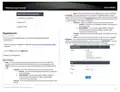
Based on the example, the network settings will be the following:
Setting up IPsec server VPN (PSK with xAUTH)
on page 6).
2. Click on Network, click VPN, and click the IPsec tab.
3. Under Overview, enter a tunnel name and click Add. (e.g. IPsec_Server)
4. Click the Connection type drop-down list and select Remote Access (Roadwarrior).
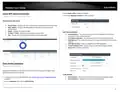
10. Under Authentication Key, enter the Pre-Shared Key (PSK) for the IPsec VPN tunnel
and click Apply. (e.g. 1234567890)
5. For the Authentication type drop-down list and select IPSec XAUTH PSK.
6. For the Local field, enter the local WAN1 IP address. (e.g. 10.10.10.10) This can also
be a domain name (ex: dynamic DNS host name)
© Copyright 2023 TRENDnet. All Rights Reserved.
63

| General | Details |
|---|---|
| Name | TRENDNET AX1800 Dual Band Wifi 6 Gigabit Dual Wan VPN SMB Router User Guide |
| Make | TRENDnet |
| Language | English |
| Filetype | PDF (Download) |
| File size | 2.5 MB |
 (1 votes, average: 5.00 out of 5)
 Loading...
If you have any questions regarding TRENDNET AX1800 Dual Band Wifi 6 Gigabit Dual Wan VPN SMB Router User Guide, please ask here and describe the problem in detail.

TRENDnet TEW-929DRU Dual Band Wireless Gigabit Dual WAN VPN SMB Router Installation Guide


orbi RBR860 WiFi 6 Tri-Band Mesh Router User Guide

CISCO cBR Series Converged Broadband Router User Guide

ASUS AX3000 Dual Band Wi-Fi Router RT-AX58U User Guide

MICRONET N300 Wireless Router, N300 WiFi Router T1 Pro User Guide

TP-Link Archer C54 Dual Band Wi-Fi Router Installation Guide

LANCOM SYSTEMS 1790-4G+ High-Performance VPN Router Installation Guide

PROCEND M331 Cellular Router Installation Guide

RV WI-FI 2024 V3 DishyDock Router User Manual

perle IRG5541+ FirstNet LTE Router User Guide

CNCU E550 EasyRoute CNC Router Instructions
Table of Contents
- 1. Page 1 →
- 2. Router Installation - Basic Installation And Configuration →
- 3. Setup Your Router With Bark - Creating A Virtual Private Net... →
- 4. Dual-wan - Ports →
- 5. Pre-encrypted Wireless - Vpn →
- 6. Product Hardware Features - Rear Panel View →
- 7. Led Indicators - Grounding Point →
- 8. Tew-829dru - Trendnet Users Guide →
- 9. Rack Mount Hardware Installation - Router Installation →
- 10. Basic Installation And Configuration - Connect A Network Cab... →
- 11. Enter The Default User Name And Password - Change The Admini... →
- 12. Commonconfigurationandgeneralsetup - Wan1internetconnections... →
- 13. Interface Configuration And General Setup - Common Configura... →
- 14. Basic Router Settings - Access Your Router Management Page →
- 15. Local Time - Hostname →
- 16. Create Time Schedules - Change Lan Ipv4 Address Settings →
- 17. General Setup - Network > Lan →
- 18. Dhcp Mode - Secondary Dns →
- 19. Add Static Dhcp Reservations - Add Static Host Name Entries →
- 20. Access Your Router Management Page - Add Static Arp Entries →
- 21. Configure Wan1 / Wan2 Interfaces For Internet Connectivity -... →
- 22. Advanced Settings - Wan Vlan Tagging →
- 23. Ipv6 Settings - Virtual Lans (vlans) →
- 24. Vlan Ip Interface Configuration - Creating A New 802.1q Vlan →
- 25. Create A Port-based Vlan With 802.1q Tagging - Access Your R... →
- 26. Vlan Id Configuration - Vlan Ip Interface Configuration →
- 27. Creating A New 802.1q Vlan - Assigning Vlan Ids To Wireless ... →
- 28. Dhcp Server Configuration - Vlan Configuration Example →
- 29. Inter Vlan Routing - Ip Address/subnet Mask →
- 30. Upnp And Nat-pmp - Security > Upnp →
- 31. Dynamic Routing Protocols - Routing Information Protocol (ri... →
- 32. Access Your Router Management Page - Ospf Routing Section →
- 33. Log Into Your Router Management Page - Qos Settings →
- 34. Dynamic Dns Overview - Sign Up For Ddns Service →
- 35. Access Your Router Management Page - Samba General Settings →
- 36. Wake On Lan (wol) - System > Wol (wake On Lan) →
- 37. Wireless Settings - Wireless > Wireless (2.4ghz Or 5ghz) →
- 38. Wireless Security - Mac-filter →
- 39. Multiplessid - Wmmmode →
- 40. Secure Your Wireless Network - How To Choose The Type Of Sec... →
- 41. Wpa2/wpa3-personal - Secure Your Wireless Network →
- 42. Selectingwpa2-psk,wpa-psk/wpa2-pskmixedmode - Selectingwpa2-... →
- 43. Guest Network - Guest Dhcp →
- 44. Wifi Client Bridge Mode - System > Device Mode →
- 45. Connect Wireless Devices Using Wps - Wps (wi-fi Protected Se... →
- 46. Network Name(ssid) - Security →
- 47. Firewall&securityset... - Generalsettings →
- 48. Port Forwarding Rules - Port Trigger Rules →
- 49. Security - Firewall →
- 50. Mac Filtering - Denial Of Service (dos) Prevention →
- 51. One-to-one Nat - Dmz Host →
- 52. Internal Port - Enable Nat Loopback →
- 53. Server Port - Server Secret →
- 54. Mwan Status - Wan1 (failover To Wan2) →
- 55. Web Management System (bark) - Load Balance →
- 56. Setup Your Router With Bark - System > Bark →
- 57. Installation - Setup →
- 58. Tew-929dru - Trendnet Users Guide →
- 59. Child Profile Creation - Access Rules Assignment →
- 60. Installation - Setup →
- 61. Creating A Virtual Private Network (vpn) - What Is A Vpn? →
- 62. Pptp Vpn Server - Setting Up The Pptp Vpn Server →
- 63. Enable Pptp Vpn Server - Local Ip Configuration →
- 64. Connection Name - Vpn →
- 65. L2tp Vpn Server - Setting Up The L2tp Vpn Server Without Ips... →
- 66. Setting Up The L2tp Vpn Client (windows) With Ipsec Encrypti... →
- 67. Setting Up Ipsec Site-to-site Vpn (psk) - Security > Vpn > I... →
- 68. Vpn Router A Configuration - Access Your Router Management P... →
- 69. Authentication Key - Pre-shared Key (psk) For The Ipsec Vpn ... →
- 70. Vpn Router B Configuration - Access Your Router Management P... →
- 71. Setting Up Ipsec Server Vpn (psk With Xauth) - Access Your R... →
- 72. Vpn Client Software Requirements - Local Subnet Configuratio... →
- 73. Pfs Exchange - Certificate List →
- 74. Setting Up Ipsec Site-to-site Vpn Failover (psk) - Vpn Route... →
- 75. Wan Interface Configuration - Local Wan Ip Address →
- 76. Access Your Router Management Page - Security →
- 77. Local Wan1 Ip Address - Local Subnet →
- 78. Secure Socket Layer Vpn (ssl) / Openvpn - Ssl Vpn Server Set... →
- 79. Certificate List - Local Name →
- 80. Ssl Vpn Client Setup (windows) - Enable Client Authenticatio... →
- 81. Choose Components - Install Tap-windows Adapter →
- 82. Openvpn Client Installation - Starting Openvpn Client →
- 83. Tew-929dru - Trendnet Users Guide →
- 84. Certificate Management - Log Into Your Router Management Pag... →
- 85. Openvpn - Certificate Name →
- 86. Router Maintenance And Monitoring - Managing Access To The R... →
- 87. Access Your Router Management Page - Tools > Diagnostics →
- 88. Speed Test - Interface →
- 89. Backup And Restore Your Router Configuration Settings - Rebo... →
- 90. Scheduled Automatic Reboot - Management > Reboot > Setting →
- 91. Router Default Settings - Reset Your Router To Factory Defau... →
- 92. Upgrade Your Router Firmware - Administrator > Backup / Flas... →
- 93. Manual Firmware Upgrade - Access Your Router Management Page →
- 94. Ping Watchdog - Check The Router Status Information →
- 95. Channel Width - Frequency →
- 96. Interface - Default →
- 97. Enable Ndpi - Network Interface For Ndpi →
- 98. Tew-929dru - Trendnet Users Guide →
- 99. Tew-929dru - Trendnet Users Guide →
- 100. Access Your Router Management Page - View Routing Table And ... →
- 101. Tew-929dru - Trendnet Users Guide →
- 102. Vpn - Technical Specifications →
- 103. Dhcp Server/relay - Dynamic Dns: Dyn.com, No-ip.com →
- 104. Wireless Channels - Power →
- 105. Troubleshooting - Router Installation →
- 106. How To Find Your Ip Address? - How To Configure Your Network... →
- 107. How To Connect To A Wireless Network Using The Built-in Wind... →
- 108. Federal Communication Commission Interference Statement - In... →
- 109. Installation Et Utilisation - Déclaration D'exposition Aux R... →
- 110. Limited Warranty - Limited Lifetime Warranty →
- 111. Refurbished Product - Governing Law →