
TRENDNET AX1800 Dual Band Wifi 6 Gigabit Dual Wan VPN SMB Router User Guide






TEW-929DRU
TRENDnet User’s Guide
Quality of Service (QoS)
Multi-WAN/QoS > QoS
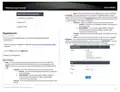
The router supports up to four QoS priority queues for traffic classification and priority.
on page 6).
2. Click on Multi-WAN/QoS and click on QoS.
3. Under QoS settings, review the settings below. When complete, click Apply to save
and commit your changes.
Classes – The QoS priority classes define the bandwidth maximum limits of total
QoS Settings
bandwidth that can be used and total bandwidth that can be shared for a particular
class. Note: Typically, you do not need to modify the QoS priority class percentage
settings.
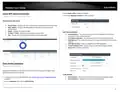
• Enable: Check the enable option to Enable QoS.
• Download speed (kbit/s): Enter the maximum download speed provided by your
ISP in kilobits per sec. It is important to set this value accurately.
Note: If your multiple mode is set to load balancing, you can combine the total
download bandwidth of both WAN connections.
•
Download link share bandwidth (%) – This defines the guaranteed bandwidth
% from the total download speed defined in the QoS settings. The class setting
will attempt to guarantee this bandwidth % minimum limit is allocated.
Download max bandwidth (%) – This defines the maximum bandwidth %
allowable from the total download speed defined in the QoS settings. This class
setting is the maximum bandwidth % limit that can be allocated above the link
share bandwidth %.
• Upload speed (kbit/s): Enter the maximum upload speed provided by your ISP in
kilobits per sec. It is important to set this value accurately.
•
• Note: If your multiple mode is set to load balancing, you can combine the total
upload bandwidth of both WAN connections.
• Calculate overhead – Typically, when this option is unchecked/disabled, the
overhead value will not be added to the upload and download speeds entered in
the fields. When this option is checked/enabled, the total overhead calculation is
included in the total upload/download speed specified to ensure the values
entered are the absolute maximum value limits entered.
•
•
Upload link share bandwidth (%) – This defines the guaranteed bandwidth %
from the total upload speed defined in the QoS settings. The class setting will
attempt to guarantee this bandwidth % minimum limit is allocated.
Upload max bandwidth (%) – This defines the maximum bandwidth %
allowable from the total upload speed defined in the QoS settings. This class
setting is the maximum bandwidth % limit that can be allocated above the link
share bandwidth %.
• Default class – When QoS is enabled, select the default priority class used for all
other traffic when QoS after all specific QoS classification rules have been
applied. You can typically set this to Low or Medium.
© Copyright 2023 TRENDnet. All Rights Reserved.
25

| General | Details |
|---|---|
| Name | TRENDNET AX1800 Dual Band Wifi 6 Gigabit Dual Wan VPN SMB Router User Guide |
| Make | TRENDnet |
| Language | English |
| Filetype | PDF (Download) |
| File size | 2.5 MB |
 (1 votes, average: 5.00 out of 5)
 Loading...
If you have any questions regarding TRENDNET AX1800 Dual Band Wifi 6 Gigabit Dual Wan VPN SMB Router User Guide, please ask here and describe the problem in detail.

TRENDnet TEW-929DRU Dual Band Wireless Gigabit Dual WAN VPN SMB Router Installation Guide


ATEL WB550 5G Fixed Wireless Access Router User Guide

WAVLINK AC1200 WiFi AP/Router Specifications

LANCOM Systems 1780EW-4G+ High Performance Mobile VPN Router User Guide

CISCO RV320 Gigabit Dual WAN VPN Router User Guide

NETGEAR NIGHTHAWK BE6500 Tri Band Wi-Fi 7 Router User Guide

LANCOM 884 VoIP Router User Guide

HORIZON HZ51 5G Wi-Fi 6 Router User Guide

REGIN M4G951 Router Instructions

Tenda Dual Band WiFi 6 Router Installation Guide

ASUS GT-AX6000 Dual-Band WiFi 6 Gaming Router User Guide